

Keyboard Knobs Explained: What Is a Rotary Encoder on a Mechanical Keyboard?
If you have shopped for a mechanical keyboard lately, you have probably noticed that a lot of boards now come with a keyboard knob in the top corner. It looks like a simple volume dial, but under the cap there is usually a small part called a rotary encoder, and it can do far more than turn your music up and down.
This guide explains how a mechanical keyboard knob works, what a rotary encoder actually sends to your computer, the best uses for a keyboard knob, how to program one, and how to fix common problems like a knob that skips, turns the wrong way, or will not click. By the end you will know whether a keyboard with a knob is worth it for the way you work and play.
How a Keyboard Rotary Encoder Works
A regular key switch has two states: pressed or not pressed. A rotary encoder is different. Instead of measuring one press, it reports rotation steps and direction.
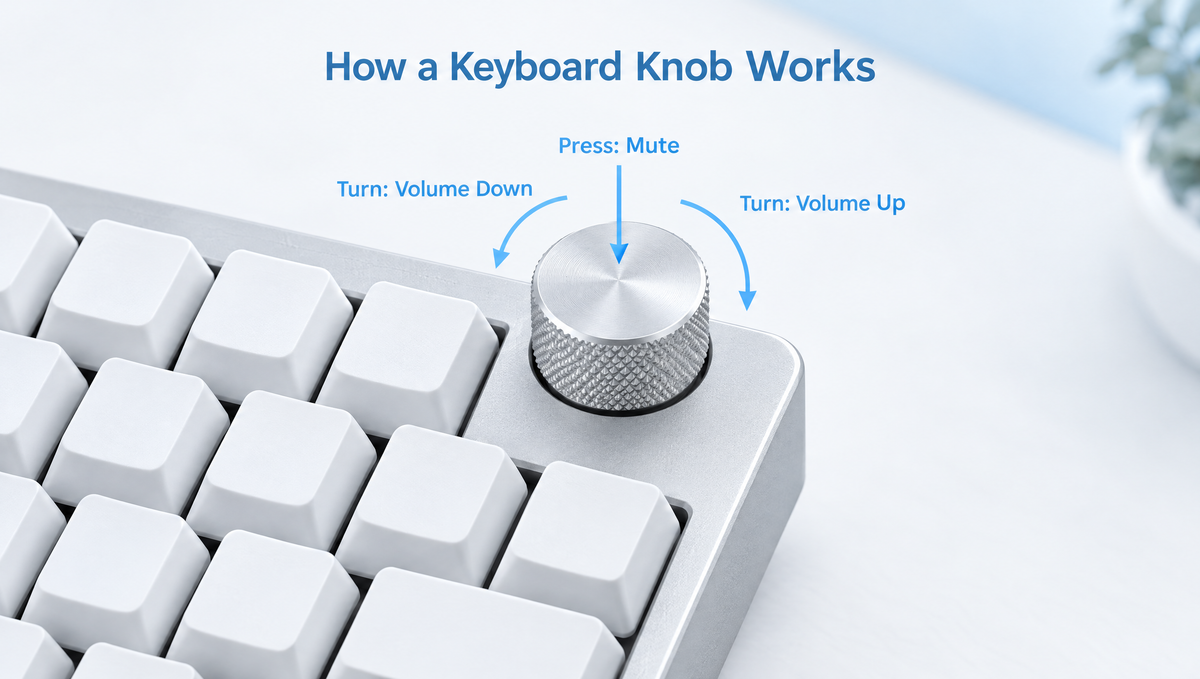
- Turning clockwise sends one action, such as Volume Up.
- Turning counterclockwise sends a different action, such as Volume Down.
- Pressing the knob on encoders with a built-in push switch works like an extra key, such as Mute or Play/Pause.
Inside the encoder are two signal contacts that switch on and off slightly out of step with each other as the shaft turns. The keyboard's controller reads the order in which those signals change, which tells it both that the knob moved and which way it moved. The firmware then turns each step into a normal keycode, so your computer simply sees ordinary key presses. That is why most knobs work on Windows, macOS, and Linux without special drivers once the keyboard itself is set up.
Many keyboard knobs use the common EC11-style encoder format, which has a push button built in and accepts a wide range of EC11 knob caps. Most also have detents, the small clicks you feel as you turn. Each detent is meant to equal one step, so one click of the knob equals one volume step, one scroll, or one zoom increment.
Rotary Encoder vs Potentiometer vs Volume Wheel
Not every dial on a keyboard is the same part, and the difference matters when you choose a board.
- Rotary encoder: Spins endlessly in both directions with no start or end point. It sends relative steps, so it can control anything that goes up or down. This is what most programmable keyboard knobs use.
- Potentiometer: Has a fixed start and stop, like a classic stereo volume knob. It reports an absolute position rather than steps. These are rare on mechanical keyboards because they do not map as naturally to keycodes.
- Volume wheel or scroll roller: A wheel built into the case edge or top that you roll with a finger instead of twisting. It usually does the same job as an encoder knob, just in a different form factor and position.
For most people, the practical question is not the exact part inside, but whether the knob or wheel is programmable, how easy it is to reach, and whether it gets in the way of the keys you use most.
Best Uses for a Keyboard Knob
Volume control is still the most popular use, and for good reason: it is fast and you can do it without looking. But a programmable knob can control anything that has an "up" and a "down." Here are the most useful keyboard knob functions people set up:
- Volume and mute: Turn for volume, press to mute. The classic setup.
- Media control: Press for Play/Pause, or set the turn to skip to the next or previous track.
- Scrolling: Map the knob to scroll up and down for long documents, code, or web pages.
- Zoom: Map it to the zoom in and zoom out shortcuts in your browser, design app, or spreadsheet.
- Video and audio editing: Scrub the timeline frame by frame or nudge clips with the arrow keys.
- Brush size and undo history: Assign bracket keys or undo and redo shortcuts in creative apps.
- Lighting: Adjust RGB brightness or cycle effects without digging through software.
- Desktop and tab switching: Move between virtual desktops or browser tabs with a twist.
The real power comes from layers. On most programmable keyboards, the knob can do something different on each layer. For example, it can control volume on your base layer, then switch to scrolling or RGB brightness when you hold the Fn key. If you have not used layers yet, our guide to Fn layers and layer keys walks through how they work.
Is a Keyboard Knob Useful for Gaming?
For gaming, a knob is mostly a convenience feature rather than a performance feature. It will not make your aim or reaction time any better. Where it does help is quickly turning down game audio when someone talks to you, adjusting voice chat volume, or muting your mic in one motion.
Some players map the knob to in-game functions that step up or down, such as cycling weapons, zooming a camera, or changing build settings. This works best in games where you are not also holding movement keys with the same hand at the same moment, because the knob usually sits on the right side of the keyboard near the mouse hand.
How to Program a Keyboard Knob
How you set up a knob depends on the keyboard's firmware and software. Most modern boards fall into one of these groups:
- VIA or QMK-based keyboards: If the firmware has encoder mapping enabled, the knob shows up in the configurator with separate slots for clockwise, counterclockwise, and (usually) the press. You assign a keycode to each, and you can set different actions on each layer.
- Web drivers: Many current keyboards use a browser-based configurator. You open the page, connect the keyboard, and choose the knob or wheel functions from a menu, with nothing to install.
- Brand software: Some keyboards use a downloadable app that handles key remapping, lighting, screen content, and knob functions in one place.
A few tips that make setup smoother:
- Keep the press and the turn related. Volume plus Mute, or Scroll plus Middle Click, is easier to remember than unrelated functions.
- Use a layer for extra functions rather than trying to cram everything onto one knob.
- Test in a text editor or a key tester page after saving so you can confirm each direction is sending the right action.
Keyboard Knob Problems and How to Fix Them
Encoders are simple parts, but they do have a few well-known quirks. Here are the most common keyboard knob problems and what to try.
Knob skipping steps or only working every other click
If one click of the knob does nothing, or one click triggers two steps, the firmware's encoder resolution may not match the encoder's detents. On QMK-based keyboards this is a firmware setting that has to be changed and reflashed. On boards with brand software, check for a firmware update first, then contact the seller if the problem continues.
Knob turns the wrong direction
If clockwise lowers the volume instead of raising it, the easiest fix is usually to swap the two actions in your keyboard software. QMK also has a firmware option to flip the encoder direction.
Knob press does not register
If turning works but pressing does not, the knob cap may be sitting too low on the shaft, so the shaft cannot travel down far enough to click. On knobs held by a small set screw, loosen it, raise the cap slightly, and retighten gently. If the press still fails with the cap removed, the issue is the encoder or its connection rather than the cap.
Knob does nothing at all
Make sure the knob actually has functions assigned on the active layer, and that you are not on a layer where it is set to "none." If the keyboard was recently reset or updated, the knob mapping may have returned to defaults. Our guides to factory resetting a mechanical keyboard and fixing VIA connection problems cover the most common software causes.
Wobbly or loose knob cap
A little side play is normal for many encoders. If the cap itself is loose, tighten its set screw or check that it is fully seated on the shaft. Avoid forcing a cap that does not match the shaft type.
Can You Add or Remove a Knob on a Hot-Swap Keyboard?
On most keyboards, no. A rotary encoder needs its own dedicated footprint and wiring on the PCB, so a normal hot-swap switch socket cannot simply accept a knob. If you want a knob, the easiest route is to choose a keyboard or keyboard kit that is designed with one.
Some boards are built around modular knobs, though. The Skyloong GK104 Pro Keyboard Kit comes with hot-swappable programmable rotary knobs, its PCB supports up to six knobs, and every knob position can be swapped for a regular key switch instead. The Skyloong GK61 Pro Keyboard takes a different approach, with a programmable split spacebar and knob module that puts a knob right under your thumbs on a compact board.
Knob vs No Knob: Which Keyboard Should You Choose?
A keyboard knob is worth it if you regularly change volume, scroll long pages, zoom, or edit media, and you like having a physical control you can use without looking. It is less useful if you already have a volume dial on your speakers or headset, or if you use a very compact layout where every key position counts.
Here is a quick way to decide:
- Choose a board with a knob if you want quick media and volume control, use creative apps, or like programmable controls on layers.
- Choose a side volume wheel if you want the convenience without giving up a key position. The Weikav NUT75 Keyboard, for example, has a damped volume wheel built into the side of its 75% case.
- Choose a kit with a dedicated knob if you want to pick your own switches and keycaps, like the Weikav HJS AL65 Keyboard Kit, a 65% kit with a dedicated knob.
- Skip the knob if you value the smallest possible layout and rarely adjust volume from your desk.
You can browse more options in our keyboards collection and keyboard kits collection.
Keyboard Knob FAQ
What is the knob on a mechanical keyboard for?
The knob on a mechanical keyboard is usually a programmable rotary encoder. Out of the box it most often controls volume, with a press to mute, but on programmable keyboards you can remap it to scrolling, zoom, media controls, lighting, or app shortcuts.
Do keyboard knobs need special software or drivers?
Not for basic use. The keyboard sends ordinary keycodes, so default functions like volume control usually work as soon as you plug it in. You only need the keyboard's configurator, such as VIA or a web driver, when you want to change what the knob does.
Can I change what my keyboard knob does?
On most programmable keyboards, yes. You can assign separate actions to turning clockwise, turning counterclockwise, and pressing the knob, and many boards let you set different actions on each layer.
Why does my keyboard knob skip or turn the wrong way?
Skipping usually means the firmware's encoder resolution does not match the encoder's detents. A reversed direction can usually be fixed by swapping the clockwise and counterclockwise actions in your keyboard software. If neither helps, check for a firmware update or contact the seller.
Is a rotary encoder the same as a volume knob?
Not exactly. A traditional volume knob is often a potentiometer with a fixed start and end point. A rotary encoder spins endlessly and reports steps and direction, which is why it can be programmed to control almost anything, not just volume.


