

How to Factory Reset a Mechanical Keyboard (and When You Should)
A remap that went wrong, a lighting mode you cannot turn off, a Windows key that suddenly does nothing, or a keyboard that types the wrong characters after you played with its software: these are the moments people start searching for how to factory reset a mechanical keyboard. A reset wipes the custom settings stored on the keyboard and puts it back the way it shipped, which fixes a surprising number of "my keyboard is broken" problems in under a minute.
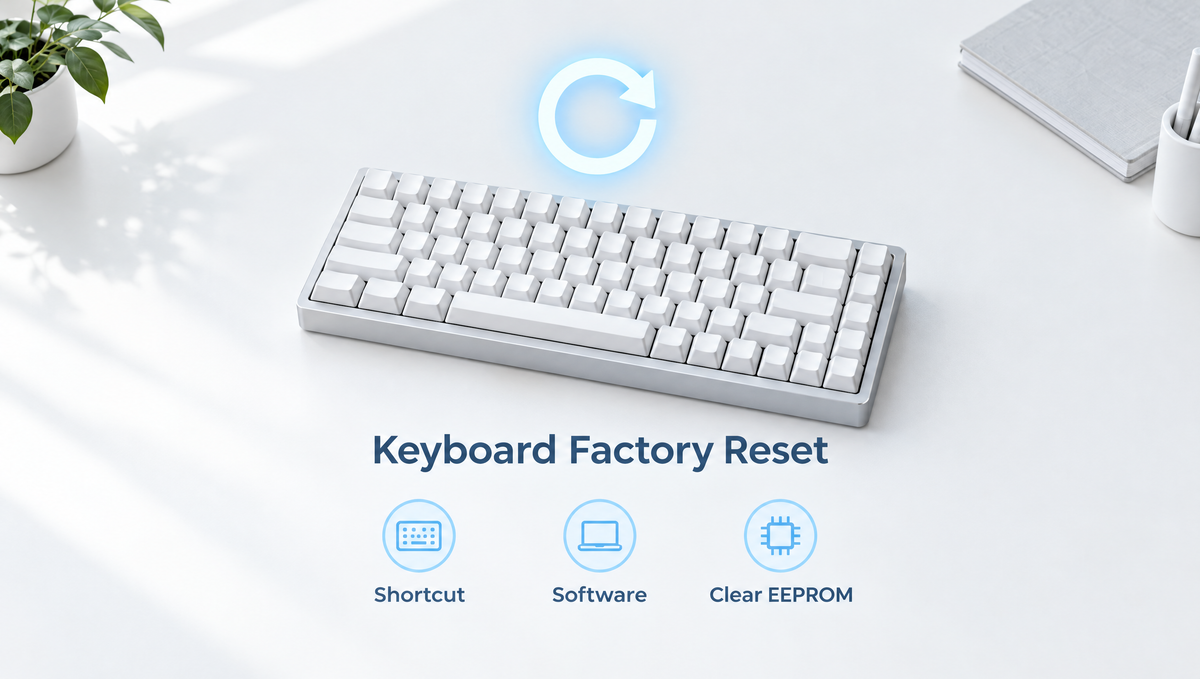
This guide explains what a keyboard factory reset actually clears, the quick checks to try first, and every common reset method, from the Fn key shortcut on prebuilt boards to clearing EEPROM on QMK and VIA keyboards. It also covers the extra steps that wireless and magnetic Hall effect keyboards need after a reset.
What Does a Mechanical Keyboard Factory Reset Do?
Most modern mechanical keyboards keep your settings in onboard memory, so they follow the keyboard from computer to computer. A factory reset erases that saved data. Depending on the keyboard, it usually restores:
- Key remaps and layers back to the default keymap
- Macros you recorded or programmed
- RGB lighting mode, brightness, color, and speed
- Toggles such as Windows key lock, Fn lock, and Mac or Windows mode
- On magnetic keyboards, actuation points, rapid trigger sensitivity, and other per-key settings
What a reset normally does not do is change the firmware version. Resetting returns the keyboard to the default settings of the firmware it is already running. Flashing new firmware is a separate process, and you should only do it with firmware made for your exact keyboard model.
Try These Quick Checks Before You Reset Your Keyboard
Plenty of problems that look like they need a reset are really a single toggle that got switched on by accident. Check these first, because they take seconds and do not erase anything:
- Windows key not working: many gaming keyboards have a Win lock shortcut that disables the Windows key so you do not tab out of games. It is often Fn plus the Windows key. Press it again to unlock.
- Alt and Windows keys swapped: the keyboard may be in Mac mode. Look for a Mac/Windows switch on the case or a mode shortcut in the manual.
- Number row or F-keys acting strangely: you may have toggled Fn lock or switched to a different layer. Our keyboard layers guide explains how layers get stuck and how to get back to the base layer.
- Keys repeating or not registering: unplug the keyboard, try a different USB port and cable, and rule out a physical issue such as dirt or a loose switch before blaming the firmware.
- Mac users: modifier keys can also be remapped in macOS itself under keyboard settings, so check there too. The mechanical keyboard for Mac guide walks through it.
If none of these fix it, a factory reset is the right next step.
Method 1: Reset With a Keyboard Shortcut (Most Prebuilt Keyboards)
Most prebuilt and gaming mechanical keyboards have a reset key combination built into the firmware. You hold the combination for several seconds, and the keyboard usually confirms the reset by flashing its lighting.
- A common pattern is holding Fn + Esc for around three to five seconds, but this is not universal
- Some brands use a different combination, such as Fn plus two or three letter keys held together
- The keyboard often needs to be connected by cable or in a specific mode for the shortcut to work
Because the exact combination varies from model to model, and even between firmware versions of the same model, check the manual or the product page for your keyboard before pressing random key combinations. Guessing can trigger other functions, such as changing the connection mode or wiping a wireless pairing.
Method 2: Reset Through the Keyboard Software
Keyboards that come with a configuration app or web driver almost always include a restore defaults or factory reset option in the settings. This is the easiest method if you have the software installed:
- Connect the keyboard with a USB cable
- Open the keyboard's official software or web configurator
- Look in the settings or device menu for "reset," "restore defaults," or "factory settings"
- Confirm, wait for the keyboard to reconnect, and test it
Software resets are helpful because they often let you reset just one profile or one feature, like lighting, instead of wiping everything. If your keyboard supports multiple onboard profiles, export or note down the ones you want to keep first.
Method 3: How to Reset a QMK or VIA Keyboard
Custom keyboards and many keyboard kits run QMK firmware, often with VIA support for remapping. These keyboards store remaps, lighting, and other settings in a small area of persistent memory called EEPROM (on many newer chips this is emulated in flash memory). Resetting a QMK or VIA keyboard means clearing that memory. There are two common ways to do it.
Use the Bootmagic Key While Plugging In
QMK's Bootmagic feature lets you hold a specific key while you plug the keyboard in. By default that key is the one in the top-left position of the key matrix, which is usually Esc. Doing this jumps the keyboard into its bootloader and clears the EEPROM at the same time.
- Unplug the keyboard
- Hold the top-left key, usually Esc
- Plug the cable back in while still holding the key, then release it
- If the keyboard is now in bootloader mode and not typing, unplug it and plug it back in normally
Not every QMK keyboard has Bootmagic enabled, and some designers assign it to a different key, so check your keyboard's documentation if nothing happens.
Use the Clear EEPROM Keycode in VIA
If your keyboard works with VIA, you can assign the QK_CLEAR_EEPROM keycode to a spare key using the "Any" key option in the VIA keymap editor, then press that key. This clears the stored settings without opening the case. Remember that VIA remaps are stored in EEPROM, so clearing it removes every custom remap, and the keyboard goes back to the default keymap built into its firmware.
Some PCBs also have a small reset button or reset pads on the circuit board. These usually put the keyboard into bootloader mode for flashing firmware rather than clearing settings, so do not assume that pressing them is a factory reset.
How to Reset a Magnetic Hall Effect Keyboard
Magnetic keyboards store far more per-key data than a standard board, including adjustable actuation points, rapid trigger sensitivity, and multi-action key settings. That makes a reset especially useful when keys feel inconsistent after a lot of tuning. For example, the Skyloong GK68HE Magnetic Keyboard keeps its configuration in onboard memory, so its settings travel with the keyboard and a reset is how you return them to default.
Reset a magnetic keyboard with the shortcut or the official software, the same way as Methods 1 and 2, then do one more important step: recalibrate the switches. Hall effect switches are read by sensors measuring a magnetic field, and calibration teaches the keyboard where each key's top and bottom positions are. Skipping calibration after a reset or a switch swap is a common cause of keys that fire too early, too late, or not at all. Our magnetic keyboard calibration guide explains how to do it properly.
If you are shopping for a board with these features, the magnetic keyboards collection lists the models we carry.
What to Do After Resetting a Wireless Mechanical Keyboard
On tri-mode keyboards that support wired, Bluetooth, and 2.4GHz connections, a factory reset can also clear Bluetooth pairings. After resetting:
- Remove the old keyboard entry from your computer's Bluetooth list before pairing again
- Put the keyboard back into pairing mode using the shortcut in its manual
- If you use a 2.4GHz receiver, check whether the receiver needs to be re-paired too
- Recharge the battery if the keyboard behaves unpredictably, since low battery can mimic a firmware fault
If connection problems continue after a reset, see our guide to wireless keyboard lag and disconnecting.
Keyboard Reset Not Working? Troubleshooting Tips
If the reset shortcut does nothing, or the problem comes back immediately, work through these steps:
- Use a wired connection. Many reset functions and most configuration tools only work over USB. Use a cable that carries data, not a charge-only cable. A quality keyboard cable plugged directly into the computer rather than a hub removes one variable.
- Hold the keys longer. Some keyboards need the combination held for five seconds or more before they respond.
- Check you are on the right mode or layer. A reset shortcut may only work on the base layer or in wired mode.
- Close other keyboard software. Two programs talking to the keyboard at once can override each other's settings.
- Test on another computer. If the keyboard works normally elsewhere, the problem is in your operating system settings or drivers, not the keyboard.
- Consider hardware. If one key still misbehaves after a full reset, the cause is likely physical, such as a dirty switch, a switch not seated in its hot-swap socket, or a bent pin.
Factory Reset Mechanical Keyboard FAQ
Will a factory reset delete my macros and key remaps?
Yes. A full factory reset erases macros, remaps, layers, and lighting settings stored on the keyboard and returns it to the default keymap. If your software lets you export profiles, save them before resetting so you can restore them later.
Does resetting a keyboard update or remove the firmware?
No. A factory reset clears saved settings but keeps the firmware that is already installed. Updating or replacing firmware is a separate flashing process, and you should only use firmware intended for your exact keyboard model.
What is the most common keyboard reset shortcut?
Holding Fn + Esc for a few seconds is one of the most common factory reset shortcuts on prebuilt mechanical keyboards, but many brands use different combinations. Always check your keyboard's manual for the correct one.
How do I reset a VIA keyboard to default?
Assign the QK_CLEAR_EEPROM keycode to a key using the Any key option in VIA and press it, or hold the Bootmagic key, usually Esc, while plugging the keyboard in if your firmware supports it. Both clear the stored settings so the keyboard returns to its default keymap.
Do I need to recalibrate a magnetic keyboard after a reset?
It is strongly recommended. Recalibrating after a factory reset helps a Hall effect keyboard read each key's travel accurately, which keeps actuation points and rapid trigger working consistently.
Reset First, Then Rebuild Your Setup
Knowing how to reset a mechanical keyboard is one of the most useful troubleshooting skills you can have. Rule out simple toggles like Win lock and Mac mode, then use the reset shortcut, the official software, or the EEPROM clear method for QMK and VIA boards. On a magnetic keyboard, finish with a calibration. Once the keyboard is back to factory settings, rebuild your remaps and lighting one change at a time, and you will know exactly what each setting does. If you are ready to upgrade, browse our full range of mechanical keyboards and keyboard kits.


