

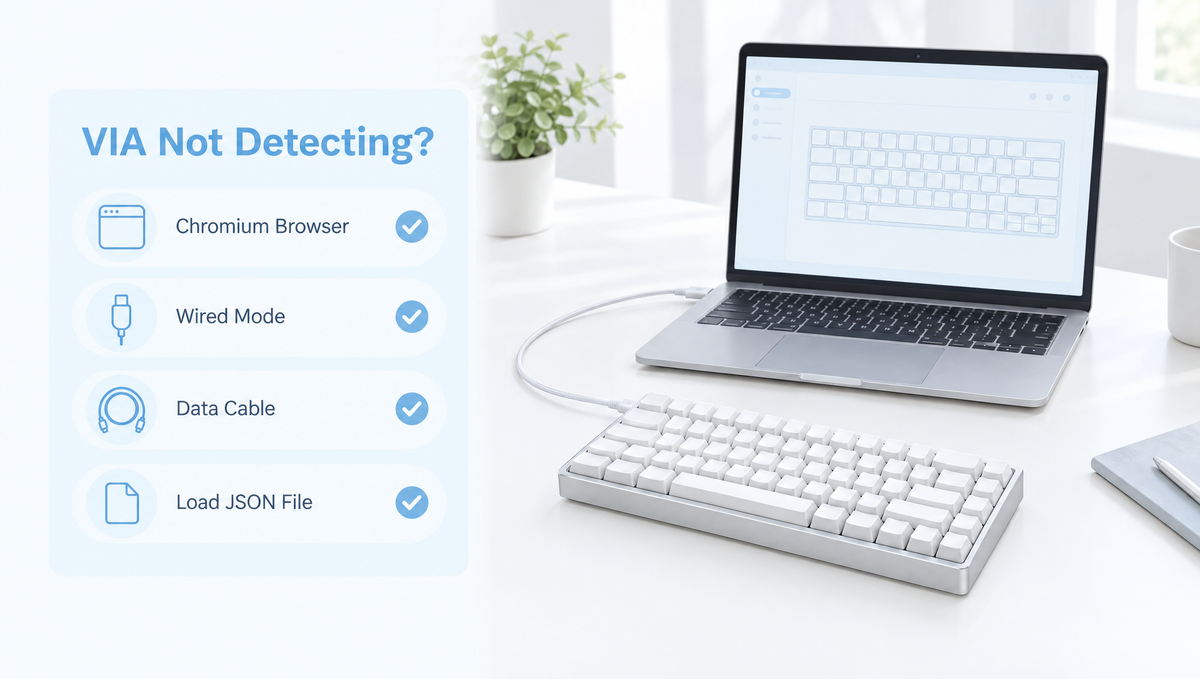
VIA Not Detecting Your Keyboard? Start Here
You open the VIA web app, click the button to connect, and get nothing: an empty device list, or a screen stuck on "searching for devices." VIA not detecting keyboard problems are one of the most common questions new custom keyboard owners ask, and the good news is that the cause is almost never a broken keyboard. In most cases it comes down to the browser, the connection mode, the cable, or a missing layout file.
This guide walks through how to fix VIA connection problems in the order most likely to solve them, from the quick checks that take ten seconds to the JSON and firmware steps that catch the stubborn cases. If you are new to VIA itself, our beginner's guide to QMK and VIA covers what the software does before you start troubleshooting.
Why VIA Can't Find Your Keyboard: How the Connection Works
Understanding how VIA talks to a keyboard makes every fix below make sense. The VIA web app at usevia.app runs in your browser and uses a browser feature called WebHID to communicate directly with USB devices. For a keyboard to show up, a few things have to be true at the same time:
- The browser supports WebHID and you have given it permission to access the keyboard
- The keyboard is connected over a USB cable that carries data, not over Bluetooth or a 2.4GHz dongle
- The keyboard is running firmware built with VIA support
- VIA knows the keyboard's layout, either from its built-in list or from a JSON definition file you load yourself
When VIA won't recognize a keyboard, one of those four links is missing. Work through them in order.
Fix 1: Use a Chromium-Based Browser
This is the single most common reason VIA is not working. WebHID is supported in Chromium-based browsers such as Chrome, Edge, Brave, and Opera. It is not supported in Firefox or Safari, so the VIA web app simply cannot see your keyboard there, no matter what else you do.
- Open usevia.app in Chrome or Edge
- Click Authorize device, select your keyboard in the browser pop-up, and click Connect
- If the pop-up shows several entries with the same name, try each one; keyboards can expose more than one USB interface
Privacy-focused browser settings and some extensions can also block the device permission prompt. If a Chromium browser still shows nothing, try a fresh browser profile or a private window with extensions disabled.
Fix 2: Connect Wired, Not Bluetooth or 2.4GHz
If you own a wireless mechanical keyboard, this is the next thing to check. VIA configures the keyboard over a USB data connection. VIA does not detect keyboards over Bluetooth or a 2.4GHz receiver, even if the keyboard types perfectly in those modes.
- Plug the keyboard into your computer with a USB cable
- Switch the keyboard to wired mode using its mode switch or key combination
- If it stays connected over Bluetooth while charging, unplug it, turn the keyboard off, turn it back on, and plug the cable back in
- Reload the VIA page and authorize the device again
Tri-mode boards such as the Weikav MAX102 Keyboard Kit, which lists QMK and VIA compatibility alongside USB-C, 2.4GHz, and Bluetooth connections, need to be in wired mode for VIA. On most keyboards, a keymap saved in VIA is stored on the keyboard itself, so it carries over when you go back to wireless.
Fix 3: Check the USB Cable and Port
A keyboard that charges but never appears in VIA is a classic sign of a charge-only cable. Some USB cables, especially ones bundled with small gadgets, carry power but not data. The keyboard lights up, but the computer never sees it as a USB device.
- Swap to a cable you know transfers data, ideally the one that came with the keyboard
- Plug directly into a port on the computer, not a USB hub, monitor port, or dock
- Try a different port, and if possible a different computer, to rule out the port itself
If you use a coiled or aviator cable, test with a plain cable first. Each extra connection is one more place a loose fit can interrupt data. A well-made braided keyboard cable is fine for everyday use once you have confirmed everything works; see our keyboard cables collection if yours is worn out.
Fix 4: Load the Keyboard's VIA JSON File
If the browser, cable, and connection mode are all correct and VIA still says it is searching, the keyboard probably needs a VIA JSON file. VIA recognizes many keyboards automatically, but plenty of boards, including many keyboard kits, require you to "sideload" a definition file that tells VIA the keyboard's layout.
- Download the correct JSON file for your exact keyboard model and layout from the manufacturer or seller
- In VIA, open the Settings tab and turn on Show Design tab
- Open the new Design tab and load the JSON file (you can also drag and drop it)
- Go back to the Configure tab and check that your layout appears
A few details trip people up here:
- Use the file for your exact board. A JSON from a similar model, a different revision, or a different layout variant may fail to load or show the wrong keys.
- The keyboard must be wired when you load the file.
- Check the definition format setting. VIA's settings include an option for older V2 definitions. If a file refuses to load, check whether the manufacturer says which format to use.
- The file may need reloading after you clear browser data or switch to a new computer.
Fix 5: Confirm the Firmware Supports VIA
VIA only works with keyboards whose firmware was built with VIA enabled. A keyboard can be fully programmable through its own software and still not be a VIA compatible keyboard. Many magnetic and gaming keyboards, for example, use their own web driver or configurator instead.
- Check the product page or manual for "QMK/VIA" or "VIA support"
- If the keyboard uses its own configurator, use that instead of VIA
- If the manufacturer offers a VIA firmware update, follow their flashing instructions exactly, using the file for your specific model
Keyboard kits like the Weikav Lucky65 V2 Keyboard Kit and the Weikav NUT108 Keyboard Kit list VIA support, so remapping keys, building macros, and setting up layers is done right in the browser once the board is connected.
Be careful with firmware flashing. Flashing the wrong file is one of the few ways to make a working keyboard stop responding. If you are not sure a firmware file is correct for your board, contact the seller before flashing.
Fix 6: Close Other Software and Reset the Browser Session
When VIA connected yesterday and refuses today, the problem is often a stale session rather than the keyboard.
- Close other keyboard configuration apps, then fully close and reopen the browser
- Clear the site data for usevia.app, then reload the JSON file if your board needs one
- Unplug the keyboard, wait a few seconds, and plug it back in before clicking Authorize device
- Restart the computer if the keyboard still does not appear in the device pop-up
Fix 7: VIA Not Working on Mac or Linux
On macOS, the rules are the same as anywhere else: use Chrome or another Chromium browser, not Safari. If VIA connects but your modifier keys feel wrong afterwards, that is usually a macOS keyboard setting rather than a VIA problem; our mechanical keyboard for Mac guide covers the remapping side.
On Linux, the browser may not have permission to access the keyboard's raw HID device by default, so the authorization pop-up can appear empty or the connection can fail. This is usually solved by adding a udev rule that grants your user access to the device. Browsers installed as sandboxed packages, such as some Snap or Flatpak builds, can also block device access; a browser installed from your distribution's regular packages is often easier to get working.
VIA Detects the Keyboard but Keys Don't Match
Sometimes VIA connects fine but the layout looks wrong, or keys you remapped do not behave as expected.
- Wrong layout shown: load the correct JSON file, or pick the right layout option (split spacebar, ISO Enter, and so on) in the Layouts section if your board offers one
- Keys do the wrong thing after a firmware update: old settings stored on the keyboard can conflict with new firmware. Many QMK keyboards support a reset by holding a specific key, often the top-left key, while plugging the cable in. This wipes your saved keymap, so note your layout first.
- Not sure if it is hardware or software: use VIA's Key Tester to see whether each physical key registers. If a key does not register at all on a hot-swap board, the problem may be the switch or socket instead; see our guide to hot-swap keys not working.
Once VIA is connected and stable, it is worth learning how layers work so you can get the most from remapping. Our keyboard layers guide is a good next step.
Quick VIA Troubleshooting Checklist
- Open usevia.app in Chrome, Edge, Brave, or Opera
- Switch the keyboard to wired mode and use a known data cable
- Plug directly into the computer, not a hub or dock
- Click Authorize device and pick your keyboard
- Enable the Design tab and load the correct JSON file if needed
- Confirm the keyboard's firmware actually supports VIA
- Restart the browser, clear site data, and try another port or computer
VIA Connection FAQ
Why does VIA say "searching for devices" forever?
Usually because the keyboard needs a JSON definition file, the browser is not Chromium-based, or the keyboard is connected wirelessly. Switch to wired mode in Chrome or Edge, authorize the device, then enable the Design tab and load the JSON file for your exact model.
Can VIA work over Bluetooth or 2.4GHz wireless?
No. VIA configures keyboards over a wired USB connection. Plug in with a data cable and switch the keyboard to wired mode to make changes. On most keyboards the saved keymap is stored on the board itself, so it still applies when you switch back to wireless.
Does VIA work in Firefox or Safari?
No. The VIA web app relies on WebHID, which Firefox and Safari do not support. Use a Chromium-based browser such as Chrome, Edge, Brave, or Opera.
Where do I get the VIA JSON file for my keyboard?
From the keyboard's manufacturer or the store you bought it from. Make sure the file matches your exact model, revision, and layout, because a file for a similar keyboard may not load or may show the wrong key positions.
Is every programmable keyboard compatible with VIA?
No. VIA only works with keyboards whose firmware includes VIA support. Many keyboards use their own configuration software instead, so check the product page or manual for "VIA" before troubleshooting further.
Final Thoughts on Fixing VIA Detection Problems
When VIA can't detect a keyboard, the fix is almost always one of a handful of simple things: the wrong browser, a wireless connection, a charge-only cable, or a missing JSON file. Work through them in order and most keyboards connect within a few minutes. If you are shopping for a board you can remap in the browser, browse our keyboard kits and check each product description for VIA support before you buy.


