

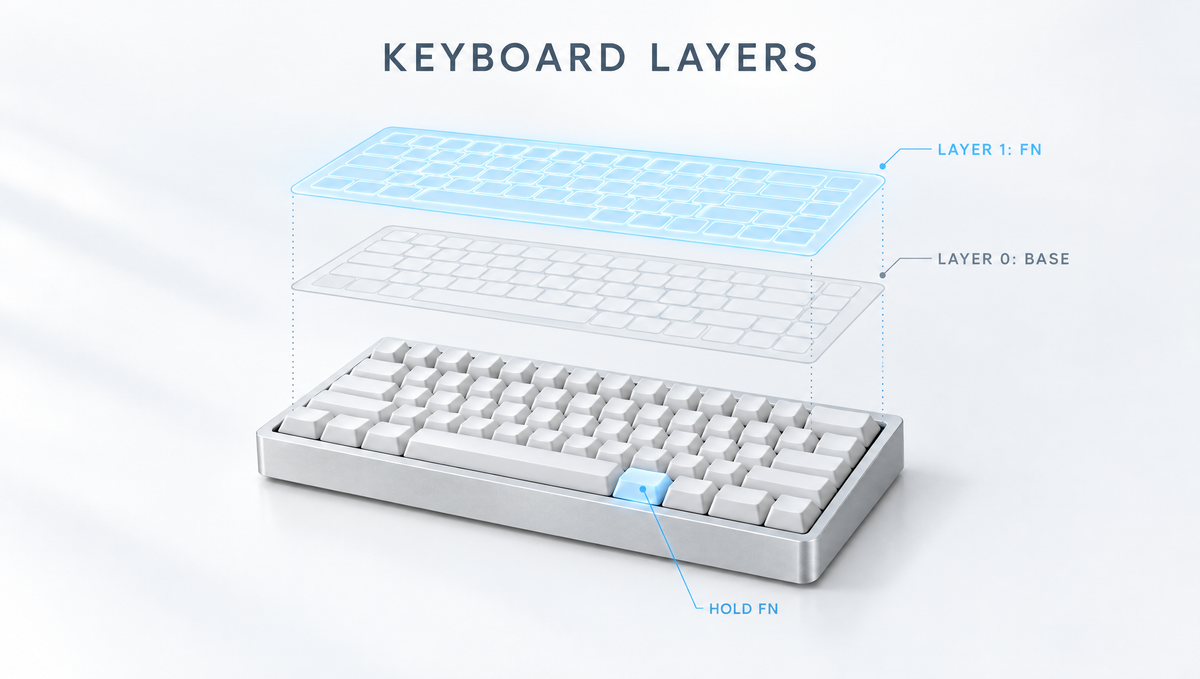
Keyboard Layers Explained: How a Small Keyboard Does Everything
Keyboard layers are the reason a 60% or 65% mechanical keyboard can have no function row, no arrow cluster and no numpad, yet still let you press F5, adjust the volume or jump to the end of a line. If you have ever asked "how do I type F keys on a 65% keyboard?" or wondered what the Fn key on your board actually does, the answer is layers.
This guide explains how keyboard layers work, what the common layer keys in QMK, VIA and Vial mean (MO, TG, TO, TT, OSL and Layer Tap), how mod-tap and home row mods fit in, and how to set up a simple, practical Fn layer without getting stuck on the wrong layer.
What Are Keyboard Layers?
A keyboard layer is a complete alternate keymap stacked on top of your normal one. Think of it like holding Shift: the same physical key types a different character. Layers take that idea much further, because a whole layer can turn your number row into F1 to F12, your I, J, K and L keys into arrows, or your right-hand keys into a numpad.
- Layer 0 (the base layer) is what you type on most of the time.
- Layer 1, Layer 2 and up hold extra functions you reach with a layer key.
- Each key on an upper layer can have its own job, or be left transparent so it behaves the same as the layer below.
The Fn key on most prebuilt keyboards is simply a key that activates a layer while you hold it. Fn plus 1 sending F1 is a layer at work, even if the manufacturer never uses the word.
Why Layers Matter on 60%, 65% and 75% Keyboards
Compact layouts are popular because they free up desk space for your mouse and keep everything within reach. The trade-off is fewer physical keys. Here is roughly what each size gives up:
- 60% keyboards drop the function row, arrow keys, navigation cluster and numpad, so arrows and F keys live on a layer.
- 65% keyboards keep dedicated arrows and a few navigation keys, but still put F1 to F12 on a layer.
- 75% keyboards keep the function row and arrows, and mostly use layers for media controls, lighting and extras.
A well-planned keyboard layer layout means you rarely miss the keys you removed. If you are still choosing a size, our guide to 65% and 75% keyboards explains the trade-offs.
How Layer Priority and Transparent Keys Work
In QMK-based firmware, layers stack in number order. When you press a key, the firmware checks the highest active layer first and works downward until it finds a key that is not transparent. Two rules follow from that:
- A higher-numbered layer wins. If Layer 2 is active and defines a key, it overrides Layer 1 and Layer 0 for that key.
- Transparent keys fall through. A key set to transparent (KC_TRNS, often shown as a down arrow or blank in configurators) passes the press to the next active layer below.
Layer Keys Explained: MO, TG, TO, TT, OSL and LT
Most keyboard layer settings in QMK, VIA and Vial use the same family of layer keycodes. Here is what each one does:
- MO(layer) – Momentary: the layer is active only while you hold the key. This is how a typical Fn key behaves and the safest choice for beginners.
- TG(layer) – Toggle: tap once to turn the layer on, tap again to turn it off. Useful for a numpad layer you want to stay on while entering numbers.
- TO(layer) – Switch to: turns on the chosen layer and turns off other layers except the default. Handy as a "go home to Layer 0" key.
- TT(layer) – Tap-Toggle: acts like MO while held, and toggles the layer on if you tap it repeatedly. In QMK the default is five taps.
- OSL(layer) – One-Shot Layer: tap it, and the layer applies to the next single key you press, then turns off.
- LT(layer, key) – Layer Tap: sends a normal key when tapped and activates a layer when held. A popular example is Space on tap and Layer 1 on hold.
- DF(layer) – Default layer: changes which layer acts as your base. In QMK this resets on power loss unless the firmware saves it.
For most people, one MO key for an Fn layer covers most everyday needs. Add TG or LT only when you have a specific reason.
Mod-Tap and Home Row Mods: Layers' Close Cousins
Mod-tap works like Layer Tap, but instead of a layer it gives a key a modifier when held. Tap your Caps Lock key and it sends Escape; hold it and it acts as Ctrl.
Home row mods take the idea further by putting Shift, Ctrl, Alt and the Windows or Command key on the home row letters as hold actions. They reduce hand movement, but they are a real adjustment. Because those keys are also your fastest typing keys, rolling quickly between letters can trigger a modifier by accident.
The key setting is the tapping term, the time the firmware uses to decide between a tap and a hold. QMK's default is 200 milliseconds, and the QMK and Vial documentation suggest starting around 250 milliseconds for home row mods and adjusting from there. Vial also exposes options such as Permissive Hold, Chordal Hold and Flow Tap that make home row mods far more reliable for fast typists.
How to Set Up a Fn Layer in VIA, Step by Step
VIA is one of the most common ways to program keyboard layers without writing code. The general process looks like this:
- Connect your keyboard with a cable and open VIA. Many VIA-compatible boards configure only in wired mode.
- Back up your current keymap by saving or exporting it, so you can restore it later.
- Select Layer 0 and choose the key you want as your layer key. Right Alt, the Menu key or an existing Fn position are common choices.
- Open the Layers keycode menu and assign MO(1) to that key.
- Switch to Layer 1 and assign the functions you want: F1 to F12 on the number row, arrows on I, J, K and L, media keys, Home and End, and so on.
- Leave everything else transparent on Layer 1.
- Test it by holding your layer key and pressing the new combinations.
The VIA interface on most boards shows four layers (Layer 0 to Layer 3), which is plenty for a base layer, an Fn layer, a numpad or gaming layer and a spare. Changes in VIA are saved to the keyboard itself, so your custom keymap follows the board to any computer, with no software running in the background.
Not every keyboard uses VIA. Many prebuilt and magnetic keyboards use their own driver or a browser-based web driver for remapping, and the options vary by model, so check your keyboard's manual for what its software supports. For the bigger picture, see our beginner's guide to QMK and VIA and our QMK vs VIA comparison.
Practical Keyboard Layer Ideas That Actually Help
The best keyboard layer setups are simple and easy to remember. Some popular ideas:
- Function layer: F1 to F12 on the number row, with F11 and F12 on the minus and equals keys.
- Navigation layer: arrows on I, J, K and L, plus Home, End, Page Up and Page Down nearby.
- Media layer: play, pause, next track and volume on keys you can reach with one hand.
- Numpad layer: a toggled layer that turns the right side of the keyboard into a number pad, ideal on a 60% or 65% board for spreadsheets.
- Coding and shortcut layer: brackets, symbols or app shortcuts on keys that are comfortable to reach. For multi-step shortcuts, combine layers with keyboard macros.
Common Keyboard Layer Problems and How to Fix Them
Most layer frustrations come from a handful of mistakes:
- Stuck on a layer: usually caused by a TG or TO key. Press the same toggle again, or add a TO(0) key on every upper layer as an escape hatch.
- Layer key does nothing: the key must be placed on a layer you can actually reach, normally Layer 0. A layer key placed only on Layer 2 cannot activate Layer 2.
- Keys stop working on an upper layer: they were set to "none" instead of transparent. Set them back to transparent so they fall through.
- Accidental modifiers while typing: your tapping term is too short for your typing speed, or Hold On Other Key Press is enabled for home row mods. Lengthen the tapping term or adjust the tap-hold options.
- A key misbehaves on every layer: if the problem is the same no matter which layer is active, the switch or socket may be the cause rather than your keymap. Our guide to hot-swap keys not working covers the hardware side.
If a keymap gets completely tangled, restore the backup you saved, or use your keyboard's documented factory reset. Resetting usually erases all custom layers, so always export your keymap first.
Choosing a Keyboard With Good Layer Support
If you plan to rely on layers, firmware support matters as much as layout. Look for QMK, VIA or Vial support if you want full control over layer keys and dual-role keys, and check whether the keyboard's own software lets you edit Fn-layer functions.
As an example, the Weikav Lucky65 V2 Keyboard Kit is a 65% kit with QMK/VIA support, so you can remap your Fn layer and key functions to suit you. If you prefer a full-size board, the Weikav NUT108 Keyboard Kit is a 108-key kit with VIA programmable support, which makes it easy to turn spare keys into shortcuts. You can compare more options in our keyboard kits collection.
Keyboard Layers FAQ
How do I use F keys on a 60% or 65% keyboard?
Hold the Fn key (or whichever key activates your first layer) and press the number row. On most compact keyboards, Fn plus 1 sends F1, Fn plus 2 sends F2 and so on, with F11 and F12 on the minus and equals keys. If your board supports VIA or similar software, you can move these to any position you like.
How many layers does a keyboard have?
It depends on the firmware. Most VIA-compatible keyboards show four layers in the VIA interface, from Layer 0 to Layer 3. QMK itself can support more, and some keyboard software offers its own fixed number of layers, so check your keyboard's documentation.
What is the difference between MO and TG in VIA?
MO is momentary: the layer is only active while you hold the key, just like a normal Fn key. TG is a toggle: one tap turns the layer on and it stays on until you tap the key again. MO is safer for beginners because releasing the key always takes you back.
Are home row mods worth it?
For many typists and programmers they reduce hand movement and feel great once tuned, but they take practice and careful tap-hold settings to avoid accidental modifiers. Try a single mod-tap key first, such as Caps Lock as Escape and Ctrl, before converting the whole home row.
Do keyboard layers work on any computer?
Yes, when the layers are stored in the keyboard's firmware, as they are with QMK and VIA. The keyboard simply sends the final key press, so your layers work on Windows, macOS and Linux without any software installed on that computer.
Make Your Compact Keyboard Work for You
Keyboard layers turn a compact board into a keyboard that can do everything a full-size one can, often with less hand movement. Start with one momentary Fn layer for F keys, arrows and media controls, keep unused keys transparent, and add toggles, Layer Tap or mod-tap only when you know what you want.


