

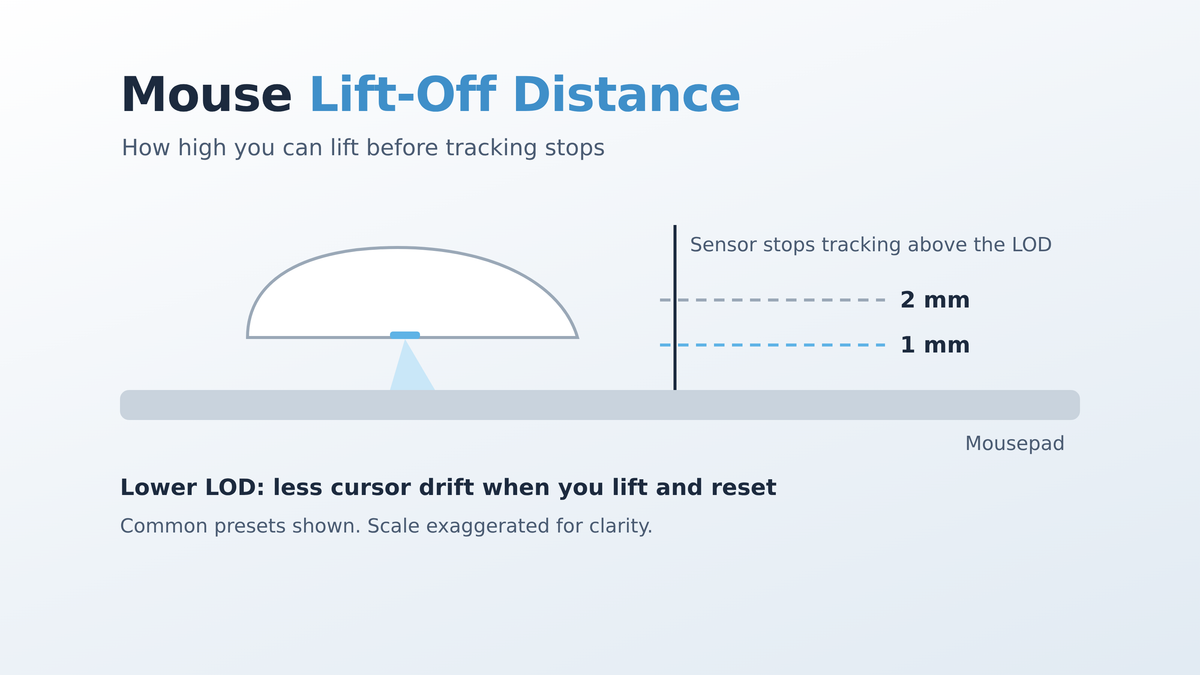
What Is Mouse Lift-Off Distance (LOD)?
Mouse lift-off distance (LOD) is the height at which a gaming mouse sensor stops tracking when you lift the mouse off your mousepad. Below that height, the optical sensor can still "see" the surface and keeps moving your cursor or crosshair. Above it, tracking cuts out until you put the mouse back down.
If you play shooters at low sensitivity, you lift and reposition your mouse constantly, so lift-off distance in gaming has a direct effect on how steady your aim feels. This guide explains how LOD works, what a low vs high lift-off distance changes, what the best LOD setting for FPS games usually is, and how to test your own mouse and mousepad at home.
How Lift-Off Distance Works on an Optical Mouse Sensor
A modern gaming mouse uses an optical sensor that takes rapid images of the surface underneath it and compares them to work out how far and in which direction the mouse moved. That only works while the surface is close enough to be in view.
As you lift the mouse, the sensor gradually loses its image of the surface. The LOD cutoff is the point where the firmware decides the image is no longer reliable and stops reporting movement. Mouse makers set this cutoff in firmware, and on many gaming mice you can change it in the mouse software.
- Low LOD: tracking stops very soon after the mouse leaves the pad.
- High LOD: the sensor keeps tracking while the mouse is a few millimeters in the air.
- Adjustable LOD: software lets you pick a cutoff, commonly from preset steps such as 1 mm and 2 mm, depending on the mouse.
- Surface calibration: some mice can tune the sensor to a specific mousepad so a low cutoff stays reliable on that surface.
Exact LOD options, step sizes, and calibration features vary from model to model, so always check what your specific mouse and its software support.
Why Low Lift-Off Distance Matters for FPS Aim
The reason gamers care about LOD comes down to one motion: the lift and reset. Low-sensitivity players running large arm movements regularly run out of mousepad mid-fight, lift the mouse, and place it back near the center.
With a high lift-off distance, the sensor can keep tracking for part of that lift. Small sideways or upward movements while the mouse is in the air get sent to the game, and your crosshair shifts when you did not mean to move it. Common symptoms include:
- Your crosshair drifts or jumps slightly every time you reposition the mouse
- Your aim lands in a slightly different place after a reset than where you left it
- The cursor jitters while the mouse is raised above the pad
- Tilting the mouse during a lift creates unwanted movement
A lower LOD reduces this, because tracking cuts out sooner after the mouse leaves the surface. That is why competitive FPS players in games like CS2 and Valorant often set LOD to the lowest value that still tracks reliably on their pad.
High-sensitivity players and people who aim mostly with their wrist lift the mouse much less often, so LOD usually matters less for them. Everyday office use is barely affected at all.
Low vs High LOD: Is Lower Always Better?
No. Lower LOD is not always better. Setting the cutoff too low can create its own problems:
- Tracking skips: the sensor may briefly stop tracking during normal movement if the mouse tilts slightly or you press it unevenly.
- Soft pad issues: on thick, soft cloth pads, the surface compresses under your hand. If one side of the mouse sits a little higher, a very low cutoff can drop tracking while the mouse is still on the pad.
- Surface compatibility: very smooth, glossy, reflective, or uneven surfaces can make the sensor less confident, so a low setting may cause stutters or micro-jitter.
The goal is not the smallest number possible. The goal is the lowest LOD that never drops tracking during normal play on your setup.
What Is the Best LOD Setting for Gaming?
There is no single best lift-off distance for everyone, but these starting points work for most people:
- Low-sensitivity FPS players (arm aimers): start at the lowest available setting, often 1 mm, and only raise it if you see tracking drop-outs.
- Players who use hard or glossy mousepads: start one step higher, such as 2 mm, or run surface calibration first if your mouse supports it.
- High-sensitivity or wrist-aim players: the default setting is usually fine; pick whichever option feels most stable.
- MOBA, MMO, and general desktop use: LOD rarely matters, so the default is a sensible choice.
- Players who switch between several mousepads: a middle setting is a safer compromise than the lowest one.
If your mouse does not offer adjustable LOD, it still has a fixed cutoff set by the manufacturer. In that case, your mousepad and mouse feet are the main things you can change.
How Your Mousepad Affects Lift-Off Distance
Lift-off distance is not only a mouse setting. The mousepad surface changes how the sensor behaves near its cutoff point.
- Texture and color: the optical sensor reads surface detail, so texture and color can change how cleanly it tracks and how consistent the cutoff feels.
- Thickness and softness: a thick, soft cloth pad compresses under pressure, which slightly changes how far the sensor sits from the surface while you play.
- Glossy and glass surfaces: very smooth or reflective pads can need a slightly higher LOD or surface calibration to avoid stuttering.
- Wear: a worn, dirty, or curling pad gives the sensor a less consistent surface. Cleaning or replacing the pad often fixes tracking that suddenly feels off.
For a consistent, low-LOD-friendly setup, choose a flat, evenly textured pad that matches your playstyle. If you are unsure which surface to choose, our guide to cloth vs hard vs glass mousepads covers the trade-offs, and you can browse our mousepads collection, including the Glacier Frosted Mousepad.
Mouse Feet, Skates, and LOD
Mouse feet (also called skates) set how high the sensor sits above the pad. Thicker aftermarket skates raise the sensor, while worn-down original feet lower it. Either change can shift how your lift-off distance behaves in practice.
After replacing your mouse skates or switching pads, re-test your LOD. A setting that worked perfectly on old, worn feet might start cutting out or tracking too high with new ones.
How to Test Mouse Lift-Off Distance at Home
You do not need special equipment to test LOD. Try this simple routine:
- Start at your default setting. Open a paint program or a blank desktop and watch the cursor, or use an in-game practice range.
- Do a lift-and-reset test. Lift the mouse slowly, move it sideways in the air, and put it back down. Repeat about ten times. Watch whether the cursor or crosshair moves while the mouse is in the air.
- Try a tilted lift. Many players raise one side of the mouse first. Lift at a slight angle and check for movement or jumps.
- Lower LOD one step and repeat. If your software allows it, drop to the next lower setting and run the same tests.
- Check normal tracking. Play or move the mouse normally for a few minutes, including fast flicks. If the cursor ever stutters or stops while the mouse is on the pad, go back up one step.
LOD vs DPI, Polling Rate, and Mouse Weight
Lift-off distance is just one part of how a gaming mouse feels:
- DPI controls how far the cursor moves per inch of physical movement (see our mouse DPI and sensitivity guide).
- Polling rate controls how often the mouse reports its position to your PC (see mouse polling rate explained).
- Mouse weight and shape change how easy it is to lift, flick, and stop the mouse (see gaming mouse weight).
- LOD only affects what happens when the mouse leaves the surface.
Changing your LOD will not make your aim faster, but it can make your resets cleaner and your crosshair placement more consistent. If you are building out a gaming setup, our gaming mice collection includes the lightweight tri-mode Skyloong M1 Mouse, which supports 2.4GHz wireless, Bluetooth, and wired USB-C.
Mouse Lift-Off Distance FAQ
What is a good lift-off distance for a gaming mouse?
For most FPS players, a low setting such as 1 mm is a good starting point, provided the mouse still tracks reliably on your pad. If you notice skips or stutters, raise it one step. Hard or glossy pads may work better with a slightly higher setting or surface calibration.
Does lift-off distance matter for gaming?
It matters most for low-sensitivity FPS players who lift and reset the mouse often. A high LOD can make the crosshair drift during those resets. For high-sensitivity players, MOBA, MMO, and everyday use, the effect is usually small.
Why does my cursor move when I lift my mouse?
Your mouse sensor is still tracking because it is within its lift-off distance. Lowering the LOD in your mouse software, running surface calibration, or using a flatter, more consistent mousepad usually reduces it.
Can you change lift-off distance on any mouse?
No. Many gaming mice let you adjust LOD in their software, but others use a fixed cutoff set in firmware. Check your mouse software for an LOD or surface calibration option.
Does the mousepad change lift-off distance?
Yes, it can. Surface texture, color, gloss, thickness, and softness all affect how the sensor sees the surface near its cutoff. Re-test your LOD whenever you change pads or mouse feet.


