

How Long Does a Wireless Mechanical Keyboard Battery Last?
Wireless mechanical keyboard battery life is one of the most common questions people ask before and after buying a tri-mode board. One owner gets weeks between charges, while another with a similar keyboard is plugging in every couple of days. The difference is rarely the battery itself. It is almost always how the keyboard is being used: lighting, connection mode, sleep settings, and charging habits.
This guide explains what actually drains a wireless keyboard battery, how long you can realistically expect a charge to last, and the simple settings and habits that extend keyboard battery life without giving up the features you like.
Why Manufacturer Battery Claims Rarely Match Real Use
Battery ratings on keyboard spec sheets are usually measured under ideal conditions, often with backlighting turned off and light, intermittent typing. That makes the headline number a best case, not a typical day.
In real use, runtime depends on several things at once:
- Battery capacity, usually listed in mAh
- RGB lighting brightness, effect, and how many LEDs are lit
- Connection mode: Bluetooth, 2.4GHz, or wired
- Polling rate in wireless mode
- Sleep timer settings and how long the board sits idle while awake
- Battery age, since lithium cells slowly lose capacity over time
Because of all these variables, two people can honestly report very different numbers for the same keyboard. The good news is that most of these factors are under your control.
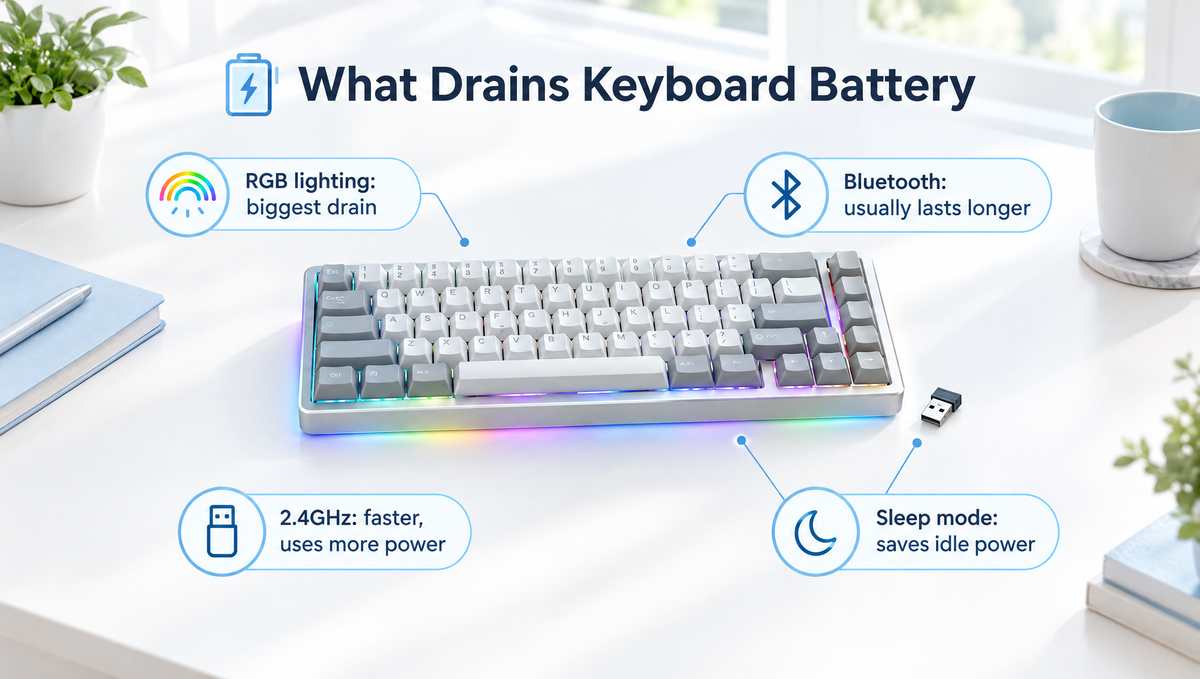
RGB Lighting: The Biggest Wireless Keyboard Battery Drain
If your wireless keyboard battery dies fast, RGB lighting is the first thing to check. The switches, controller, and radio use relatively little power while you type. LEDs, on the other hand, draw power continuously for as long as they are on, and a full-size board can have more than a hundred of them plus underglow or light bars.
Turning lighting off completely typically has a dramatic effect, often stretching runtime from days to weeks. If you do not want a dark keyboard, you still have options:
- Lower the brightness. Dimmer settings draw less power than full brightness.
- Use a static color or a simple effect instead of fast, full-board animations.
- Turn off extra light strips and underglow when you are on battery.
- Light only the keys you need, such as WASD or modifiers, if your software supports per-key lighting.
- Save your full RGB profile for wired mode, where power is not a concern.
Many tri-mode keyboards, such as the Weikav Lucky65 V3 Keyboard Kit with its RGB lighting and decorative light strip, look their best fully lit. A practical approach is to enjoy the full show when plugged in and switch to a dimmer or lights-off profile when running wireless.
Bluetooth vs 2.4GHz: Which Uses Less Battery?
The connection mode you choose also affects keyboard battery life. On many keyboards, Bluetooth is the more power-efficient wireless mode, while the 2.4GHz dongle connection uses more power in exchange for lower latency and a more stable link for gaming.
A large part of that difference comes from the polling rate. The 2.4GHz mode on gaming-focused keyboards commonly reports to the computer at a much higher rate than Bluetooth, and more frequent reports mean more radio activity. Keyboards that offer adjustable wireless polling rates will generally last longer at lower settings.
A simple rule of thumb:
- Typing, office work, tablets, and laptops: Bluetooth is usually the battery-friendly choice.
- Competitive gaming: 2.4GHz gives you the more responsive connection, at the cost of some runtime.
- Long gaming sessions at a desk: wired mode removes battery concerns entirely and charges the keyboard at the same time.
For a deeper look at the latency and compatibility trade-offs, see our guide to 2.4GHz vs Bluetooth keyboards.
Sleep Mode Settings That Extend Battery Life
Most wireless keyboards go to sleep after a period of inactivity and wake when you press a key. This is one of the most effective battery-saving features, and it is easy to undermine by accident.
- Keep sleep mode enabled. Some users disable it to avoid the brief delay when the keyboard wakes, but a board that never sleeps keeps its radio and lighting running all night.
- Use a shorter sleep timer if your keyboard or software lets you adjust it.
- Switch the keyboard off with its power switch when you will not use it for a day or more.
- Check that lighting turns off during sleep. Most boards do this automatically, but it is worth confirming after changing lighting profiles.
Sleep and power options differ between models. Check your keyboard's manual or configuration software to see which settings are available.
Wired Mode and Charging: Can You Use a Keyboard While It Charges?
Yes. On tri-mode keyboards, plugging in the USB-C cable typically switches the board to wired use or charges it while it stays in wireless mode, depending on the model and its mode switch. Either way, you can keep typing and gaming while the battery charges.
A few charging tips help avoid frustration:
- Use a good-quality cable. A loose or damaged cable can cause slow or interrupted charging, disconnects, or a keyboard that is not detected in wired mode.
- Plug into a port that supplies steady power, such as a rear motherboard port or a reliable charger, rather than a weak unpowered hub.
- Watch the charging indicator or battery readout if your keyboard has one, so you know when it is full.
If your desk setup already includes a custom cable, a durable braided option like the Glacier Braided Premium Cable works for both wired use and charging. You can find more options in our keyboard cables collection.
How to Protect Your Keyboard Battery Long-Term
Most wireless mechanical keyboards use a rechargeable lithium battery. Like the battery in a phone or laptop, it slowly loses capacity with age and charge cycles, so a keyboard that lasted weeks when new may last noticeably less after a few years. You cannot stop this completely, but you can slow it down.
- Avoid heat. High temperature is one of the main causes of faster lithium battery aging. Keep the keyboard out of direct sun, off hot surfaces, and out of hot cars.
- Avoid running it completely flat regularly. Recharging before the battery is fully empty is gentler on lithium cells than repeated deep discharges.
- Store it partly charged. If a keyboard will sit unused for weeks or months, battery guidance commonly recommends storing lithium batteries at a partial charge, around half full, in a cool place rather than fully charged or completely empty.
- Top it up during long storage. Batteries slowly self-discharge, so check and recharge a stored keyboard occasionally so it does not sit fully drained.
If your battery life suddenly drops sharply rather than slowly declining, check your settings first. A lighting profile that reset after a firmware update, a disabled sleep timer, or a switch to 2.4GHz mode can easily look like a failing battery.
Quick Checklist: Why Does My Wireless Keyboard Battery Die So Fast?
If you are troubleshooting short wireless keyboard battery life, work through this list in order:
- Check RGB lighting. Turn it off or dim it and compare runtime.
- Check the connection mode. Try Bluetooth for everyday typing instead of 2.4GHz.
- Check the polling rate if your keyboard lets you adjust it in wireless mode.
- Check sleep settings. Make sure sleep is enabled and the timer is reasonable.
- Turn the keyboard off overnight or when you are away for long periods.
- Check the charging cable and port to confirm the battery is actually reaching full charge.
- Update firmware only with the official tool and instructions for your model, since updates can sometimes improve power management.
If none of these help and the keyboard is several years old, the battery may simply have aged. Contact the manufacturer or seller for guidance rather than opening the keyboard to replace a lithium battery yourself.
Choosing a Wireless Mechanical Keyboard With Good Battery Life
If battery life matters to you, keep these points in mind when shopping for a wireless mechanical keyboard or keyboard kit:
- Tri-mode connectivity gives you Bluetooth for efficiency, 2.4GHz for gaming, and wired mode for charging or marathon sessions.
- Battery capacity matters, but compare it alongside lighting. A board with heavy lighting may need a larger battery to reach the same runtime.
- Layout size plays a role. Larger layouts usually have more lit keys, so full RGB on a full-size board draws more power than on a compact one.
- Software support for sleep timers, lighting control, and battery indicators makes power management much easier.
- Convenient receiver storage helps if you travel. The Weikav Stars75s Keyboard, for example, has a dedicated compartment for its 2.4G receiver.
For a full-size option with Bluetooth 5.0, 2.4GHz, and USB-C wired modes, the Weikav NUT108 Keyboard Kit is worth a look. You can browse more tri-mode options in our keyboard kits collection and the full keyboards collection.
FAQ: Wireless Mechanical Keyboard Battery Life
Does RGB lighting really drain a wireless keyboard battery?
Yes. RGB lighting is usually the single largest power draw on a wireless keyboard. Turning lighting off or dimming it is the fastest way to extend battery life, often by a large margin.
Does Bluetooth or 2.4GHz use more battery on a keyboard?
On many keyboards, 2.4GHz uses more battery than Bluetooth, largely because it typically runs at a higher polling rate for lower latency. Bluetooth is usually the better choice for long battery life during everyday typing.
Is it bad to leave a wireless keyboard plugged in all the time?
Using a keyboard while it charges is normal and supported on tri-mode boards. Keyboards manage charging internally, but keeping the board cool and not storing it fully charged for long periods is generally better for long-term lithium battery health. Follow your keyboard's manual for model-specific advice.
Why does my wireless keyboard battery drain overnight?
The most common causes are a disabled or very long sleep timer, lighting that stays on, or a keyboard left powered on while connected. Enable sleep mode and switch the keyboard off when you are done for the day.
Do mechanical keyboard batteries wear out?
Yes. Rechargeable lithium batteries gradually lose capacity with age and charge cycles. Avoiding heat, avoiding frequent full discharges, and storing the keyboard partly charged all help the battery last longer.
Final Thoughts on Extending Keyboard Battery Life
Getting better wireless mechanical keyboard battery life is mostly about smart settings rather than buying a bigger battery. Dim or disable RGB on battery, use Bluetooth for everyday typing, keep sleep mode on, switch the board off when you are away, and treat the lithium battery gently. With those habits, a tri-mode keyboard can go much longer between charges while still giving you low-latency 2.4GHz or wired mode whenever you need it.


