

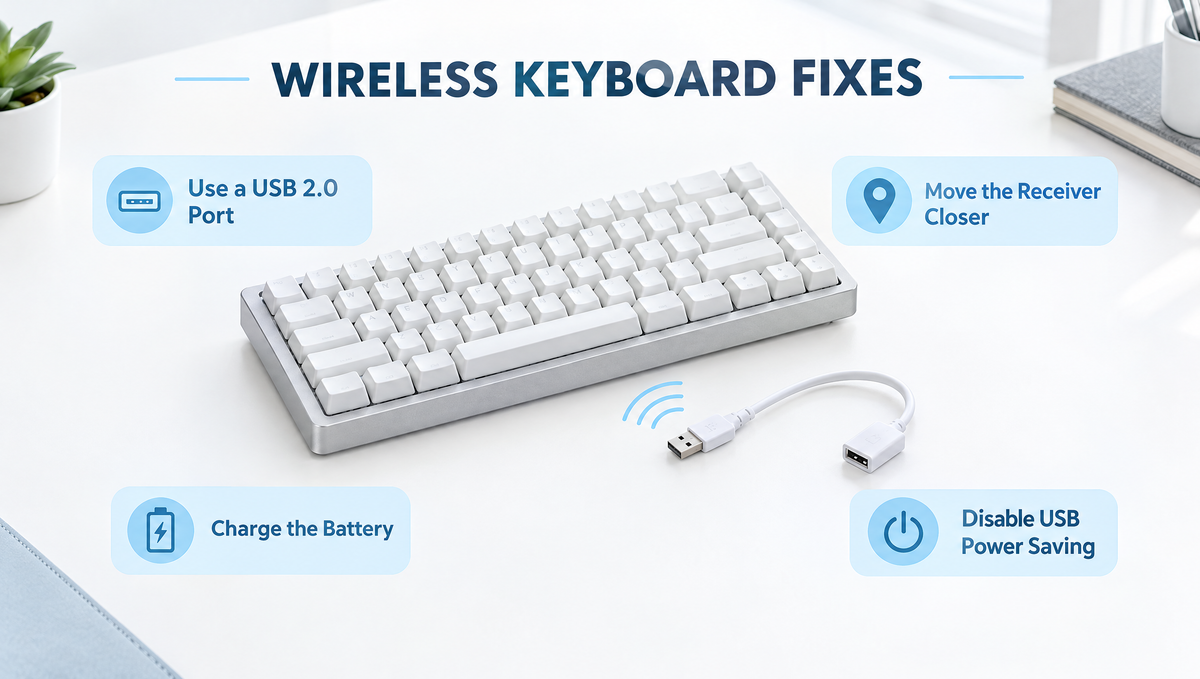
Why Is My Wireless Keyboard Lagging or Disconnecting?
A wireless keyboard lagging, dropping keystrokes, or randomly disconnecting is one of the most common complaints from people who just moved to a tri-mode mechanical keyboard. The good news is that most wireless keyboard problems are not a faulty board. They usually come down to receiver placement, USB 3.0 interference, power-saving settings, or a low battery, and almost all of them can be fixed in a few minutes.
This guide walks through why a 2.4GHz wireless keyboard or Bluetooth keyboard keeps disconnecting, how to stop input lag and stutter, and the order to troubleshoot in so you are not guessing. If you are still choosing between connection types, our guide to 2.4GHz vs Bluetooth keyboards covers the differences in depth.
Common Symptoms of Wireless Keyboard Problems
Different symptoms point to different causes, so it helps to name exactly what you are seeing:
- Input lag or delayed keystrokes: letters appear a moment after you type, or several arrive at once.
- Stutter or missed keys: some presses never register, especially during fast typing or gaming.
- Stuck or repeating keys: a key keeps repeating after you release it, which can happen when the release signal is lost over a weak wireless link.
- Random disconnects: the keyboard stops responding and then reconnects after a few seconds.
- First keystroke lost after idle: the board is waking from sleep mode and the first press is used to reconnect.
If the problem disappears completely when you plug in a USB cable and use wired mode, the switches and PCB are fine and the issue is almost certainly the wireless link. That one test saves a lot of time.
Fix 1: Move the 2.4GHz Receiver Closer to the Keyboard
The single most effective fix for 2.4GHz keyboard lag is shortening the distance between the receiver (dongle) and the keyboard. A receiver plugged into the back of a tower under the desk often has the metal PC case, the desk itself, and other cables between it and the keyboard.
- Use a USB extension cable or adapter to bring the receiver onto the desk, ideally with a clear line of sight to the keyboard.
- Keep the receiver away from the PC case, monitor stands, and other metal objects that can block or reflect the signal.
- If you use a 2.4GHz wireless mouse too, give each receiver some space rather than plugging both into neighboring ports behind the PC.
Many gamers already do this for wireless mice, and the same logic applies to a wireless mechanical keyboard. Moving the dongle from the back of the PC to the desk is often enough to stop stutter on its own.
Fix 2: Avoid USB 3.0 Interference
This is the cause most people never suspect. Intel published a white paper showing that USB 3.0 ports, cables, and devices can emit radio frequency noise in the 2.4GHz to 2.5GHz range, the same band used by 2.4GHz wireless receivers, Bluetooth, and 2.4GHz Wi-Fi. That noise can reduce the receiver's sensitivity and cause drops or lag.
To reduce USB 3.0 interference with a wireless keyboard:
- Plug the receiver into a USB 2.0 port when one is available. USB 3.x ports are often marked with blue plastic or an "SS" logo, though this varies by manufacturer.
- Do not put the receiver right next to an active USB 3.0 external drive, hub, or flash drive.
- Use an extension cable to physically separate the receiver from busy front-panel or rear USB 3.0 ports.
Fix 3: Charge the Battery
A low battery is one of the most common reasons a wireless keyboard keeps disconnecting. As the battery drains, many keyboards become less stable, lag more, or drop out before they shut down completely.
Charge the keyboard fully and test again before changing anything else. If the issue disappears after a full charge, you have found the cause. For tips on stretching runtime, see our guide to wireless mechanical keyboard battery life.
Fix 4: Turn Off USB and Bluetooth Power Saving in Windows
Windows can switch off USB ports and Bluetooth adapters to save power. When that happens, the keyboard may drop out after a few minutes of idle time or lag when it wakes back up. This is a very common cause of a Bluetooth keyboard disconnecting on laptops.
- Open Device Manager.
- Expand Bluetooth (for Bluetooth mode) or Universal Serial Bus controllers (for the 2.4GHz receiver).
- Open the properties of your Bluetooth adapter or each USB Root Hub, then go to the Power Management tab if it is shown.
- Uncheck "Allow the computer to turn off this device to save power" and click OK.
On many Windows systems you can also disable USB selective suspend in the advanced power plan settings. Not every PC shows these options, but where they exist they are worth checking.
Fix 5: Reduce 2.4GHz Wireless Congestion
Bluetooth, 2.4GHz receivers, and 2.4GHz Wi-Fi all share the same crowded part of the spectrum. A desk with a wireless mouse, wireless headset, phone, Bluetooth speaker, and a router nearby can make interference more likely.
- If your router supports it, move your PC and phone to the 5GHz or 6GHz Wi-Fi band to free up 2.4GHz.
- Keep the router and other 2.4GHz devices from sitting directly next to the keyboard receiver.
- Turn off Bluetooth devices you are not using.
Fix 6: Re-Pair the Keyboard and Update Firmware
Pairing data can get out of sync, especially after switching between several devices in Bluetooth mode. Removing the keyboard from your computer's Bluetooth list and pairing it again is a quick reset. For 2.4GHz mode, follow your keyboard's manual to re-pair the receiver.
It is also worth checking whether the manufacturer offers firmware or driver updates. Updates can improve connection stability, and the correct method varies by keyboard, so always use the official instructions for your model. Our explainer on software vs firmware for keyboards explains what each one controls.
Bluetooth vs 2.4GHz: Which Mode Should You Use to Avoid Lag?
If you see lag in Bluetooth mode, try 2.4GHz before anything else. Bluetooth is convenient for switching between a laptop, tablet, and phone, but it generally has higher and less consistent latency than a dedicated 2.4GHz receiver. For gaming, 2.4GHz or wired mode is the better choice.
- Wired: the most consistent and the best choice for competitive gaming. On most wireless boards it also charges the battery.
- 2.4GHz: low latency and stable when the receiver is placed well. A good everyday gaming choice.
- Bluetooth: best for multi-device convenience and typing. Not ideal for fast games.
Tri-mode boards such as the Weikav Lucky65 V3 Keyboard Kit and the Weikav Stars75s Keyboard support wired USB, Bluetooth, and 2.4G wireless, so you can switch modes to match the task. The Stars75s also has a dedicated compartment for its 2.4G receiver, which makes the tiny dongle much harder to lose.
When to Switch to Wired Mode
Sometimes the simplest answer is a cable. If you play competitive games, use a crowded wireless environment like an office or dorm, or just want zero worries, wired mode removes every wireless variable. A good USB-C cable like the Glacier Braided Premium Cable lets you stay wired at your main desk and go wireless only when you need to. You can browse more options in our keyboard cables collection.
If the keyboard still drops keys or repeats keys in wired mode, the problem is not wireless at all. Check for a loose hot-swap switch or bent pins with our guide to fixing a hot-swap keyboard key not working.
Quick Wireless Keyboard Troubleshooting Checklist
- Test in wired mode to confirm the keyboard itself works.
- Fully charge the battery.
- Move the 2.4GHz receiver onto the desk with an extension cable.
- Plug the receiver into a USB 2.0 port, away from USB 3.0 devices.
- Disable USB and Bluetooth power saving in Device Manager.
- Reduce nearby 2.4GHz congestion.
- Re-pair the keyboard and check for official firmware updates.
- Switch from Bluetooth to 2.4GHz or wired for gaming.
Wireless Keyboard Lag FAQ
Why does my wireless keyboard lag in games but not when typing?
Games demand fast, consistent input, so small delays and dropped packets that you would never notice while typing become obvious. Bluetooth mode is the usual culprit. Switch to 2.4GHz or wired mode and move the receiver closer to the keyboard.
Why does my keyboard miss the first keystroke after being idle?
Most wireless keyboards enter a sleep mode to save battery. The first press wakes the board and re-establishes the connection, so it may not register as a character. This is normal behavior rather than a fault. Disabling power saving on the PC side can help if the delay feels long.
Can USB 3.0 really interfere with a wireless keyboard?
Yes. Intel has documented that USB 3.0 devices and ports can produce radio noise in the 2.4GHz band, which can affect nearby 2.4GHz receivers. Using a USB 2.0 port or an extension cable to move the receiver away usually solves it.
Is 2.4GHz or Bluetooth better for a wireless mechanical keyboard?
For gaming and the lowest lag, 2.4GHz is generally better. Bluetooth is more convenient for switching between multiple devices like a laptop, tablet, and phone. Many tri-mode keyboards let you use both, plus wired mode.
Should I replace my keyboard if it keeps disconnecting?
Not before working through the checklist above. Receiver placement, battery level, and power-saving settings are behind most disconnects. If the keyboard works perfectly in wired mode, the hardware is very likely fine.
Final Thoughts
A wireless keyboard that lags or disconnects is frustrating, but it is rarely a dead keyboard. Start with the easy wins: charge the battery, move the receiver closer, avoid USB 3.0 ports, and turn off power saving. Those steps fix most problems with 2.4GHz and Bluetooth mechanical keyboards. If you want a tri-mode board with the flexibility to switch between wired, 2.4GHz, and Bluetooth, explore our keyboards and keyboard kits collections.


