

Can You Use a Mechanical Keyboard on a Mac?
Yes. Almost any mechanical keyboard for Mac use will work the moment you plug it in, because macOS treats it like any other USB or Bluetooth keyboard. The questions start after that: why is the Command key in the wrong place, why does Home jump to the top of the page, and why does a popup ask you to press a strange key? This guide covers how to set up a mechanical keyboard on a Mac, how to fix the modifier key layout, and what to look for when buying a Mac-compatible mechanical keyboard.
Most mechanical keyboards are designed with Windows legends, but that is a cosmetic difference, not a compatibility problem. With a few settings changes, a Windows-layout board can feel completely natural on macOS.
Do Mechanical Keyboards Work With Mac? The Short Answer
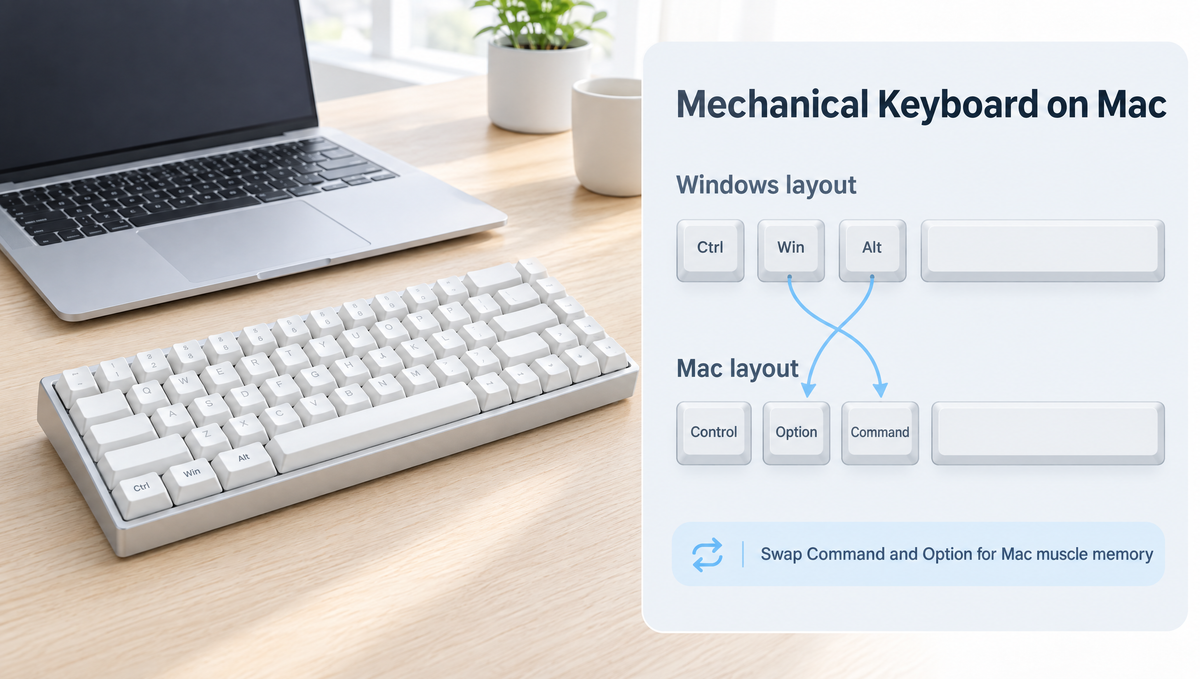
Mechanical keyboards use the same standard USB HID protocol as Apple's own keyboards, so macOS recognizes them without drivers. That applies to wired USB-C connections, Bluetooth, and 2.4GHz wireless dongles. What changes between a Mac and a PC is not whether the keyboard works, but how the keys are labeled and arranged:
- The Windows key works as the Mac Command key.
- The Alt key works as the Mac Option key.
- Ctrl works as Mac Control.
The catch is position. On a Mac keyboard, Command sits directly next to the spacebar. On a Windows-layout keyboard, Alt sits next to the spacebar and the Windows key is one step further out. If you rely on muscle memory for shortcuts like Command+C and Command+V, that swap is the first thing you will want to fix.
First-Time Setup: Keyboard Setup Assistant
When you connect a non-Apple keyboard, macOS may open the Keyboard Setup Assistant. It asks you to press the key to the right of the left Shift key and the key to the left of the right Shift key. This is how macOS identifies whether your keyboard uses an ANSI, ISO, or JIS physical layout.
- Follow the prompts and press the keys it asks for.
- If it picks the wrong layout type, keys like the backtick or the key next to left Shift may type the wrong character.
- You can rerun the assistant later from the Keyboard section of System Settings if you skip it or answer incorrectly.
How to Swap Command and Option on a Mechanical Keyboard
There are three common ways to fix the Command and Option key swap on a Windows-layout mechanical keyboard. Pick whichever matches your keyboard.
Option 1: Use the Keyboard's Built-In Mac Mode
Many modern mechanical keyboards have a Windows/Mac mode toggle, usually a function-layer key combination or a physical switch. In Mac mode, the board typically swaps Alt and the Windows key in its firmware and may remap the top row to Mac media functions. Check your keyboard's manual for the exact combination, since it varies by model.
Option 2: Use macOS Modifier Keys Settings
If your keyboard has no Mac mode, macOS can remap modifiers for you:
- Open System Settings and choose Keyboard.
- Click Keyboard Shortcuts, then select Modifier Keys.
- Use the keyboard menu at the top to choose your mechanical keyboard, not the built-in one.
- Set the Option key to act as Command and the Command key to act as Option.
This change applies only to the keyboard you selected, so your laptop's built-in keyboard stays normal. The same panel can also remap Caps Lock, which many people turn into Control or Escape.
Option 3: Remap in QMK or VIA Firmware
If your keyboard supports QMK or VIA, you can swap the keys in the firmware itself. The change is stored on the keyboard, so it works on any Mac you plug into without touching system settings. VIA's web configurator relies on WebHID, which Chromium-based browsers such as Chrome and Edge support but Safari does not, so open it in a Chromium browser on your Mac.
Mac Keyboard Shortcuts That Work Differently
Even after the modifier swap, a few keys behave differently on macOS than on Windows. Knowing them saves a lot of frustration.
- Home and End: In most Mac apps these scroll to the top or bottom of the document instead of moving the cursor to the start or end of the line. Use Command+Left Arrow and Command+Right Arrow for line start and end.
- Print Screen: macOS does not use it. Take screenshots with Command+Shift+3 (full screen), Command+Shift+4 (selection), or Command+Shift+5 (screenshot toolbar).
- Delete: The Backspace key acts as Mac Delete. For forward delete, use the Delete key on a full-size or TKL board, or Fn+Backspace if your keyboard maps it that way.
- Function row: Depending on the keyboard and its mode, the top row may send standard F1–F12 or media and brightness functions. Your keyboard's Fn layer switches between them.
Wired, Bluetooth, or 2.4GHz on a Mac
All three connection types work with macOS, but there are some Mac-specific details to consider.
- Wired USB-C: The simplest and most reliable option. Most current Mac laptops have only USB-C ports, so a USB-C to USB-C cable or an adapter may be needed if your keyboard cable ends in USB-A.
- Bluetooth: Pairs through System Settings like any Bluetooth accessory and needs no ports. It is convenient for laptops and for switching between a Mac, iPad, and phone.
- 2.4GHz wireless: Usually lower latency than Bluetooth, which matters more for gaming. Most dongles are USB-A, so on a USB-C-only Mac you will need an adapter or hub.
A tri-mode mechanical keyboard gives you all three, which is handy if you move between a desk setup and a laptop.
What to Look for in a Mechanical Keyboard for Mac
You do not need a keyboard marketed specifically for Mac. Instead, check for these features when choosing the best mechanical keyboard for Mac use:
- Stated macOS support: Shows the manufacturer supports macOS and often means a Mac mode or Mac key mapping is available.
- Onboard memory: Saves your remaps and lighting on the keyboard itself. This matters because some keyboard configuration software is Windows-only.
- QMK/VIA support: Lets you remap keys from a browser on your Mac, with no platform-specific app required.
- Hot-swappable switches: Lets you try different switches without soldering, so you can tune the feel over time.
- Layout: 65% and 75% boards pair well with laptops on a small desk, while full-size boards keep the numpad for spreadsheets and data entry.
Mac-Compatible Options in Our Catalog
Several keyboards in our keyboards collection and keyboard kits collection list macOS support:
- The Weikav Lucky65 V3 Keyboard Kit is a 65% aluminum tri-mode kit that supports Windows, macOS, and Linux.
- The Weikav MAX102 Keyboard Kit is a full-size tri-mode kit with QMK and VIA support that works across Windows, macOS, Linux, iPadOS, iOS, and Android.
- The Skyloong GK104 Pro Keyboard Kit is a full-size tri-mode kit with onboard memory that lists Mac compatibility.
- The Skyloong GK61 Pro Keyboard is a compact 60% board that supports both Windows and macOS.
Keyboard kits are usually sold as barebones without switches or keycaps (check each listing), so you can pair them with switches from our key switches collection to get exactly the feel you want.
Hall Effect and Magnetic Keyboards on Mac
Mac users who game often ask whether magnetic keyboards work on macOS. Features like rapid trigger and adjustable actuation run inside the keyboard's own firmware, so they work regardless of operating system once configured. The main thing to check is how you configure them: if the settings software is Windows-only, make sure the keyboard saves profiles to onboard memory so you can set it up once and use it anywhere.
The Skyloong GK68HE Magnetic Keyboard lists support for both Windows and macOS and stores its configuration onboard. You can browse more in our magnetic keyboards collection.
Do You Need Mac Keycaps?
No. Keycap legends do not change what a key does; the keyboard and macOS decide that. Once you have swapped Command and Option, your Alt keycap simply acts as Command. Some people prefer keycaps printed with Mac symbols so the labels match, but it is purely a visual choice.
If you want a cleaner look that avoids the Windows logo entirely, blank-modifier or novelty sets are another route. Just confirm the set's profile and layout coverage match your board. Our Cherry profile keycaps are a good place to start for most MX-style keyboards.
Frequently Asked Questions
Will a Windows mechanical keyboard work on a Mac?
Yes. A Windows-layout mechanical keyboard works on a Mac without drivers. The Windows key acts as Command and Alt acts as Option. You will likely want to swap them using the keyboard's Mac mode, macOS Modifier Keys settings, or QMK/VIA so Command sits next to the spacebar.
How do I make my mechanical keyboard work like a Mac keyboard?
Switch the keyboard to Mac mode if it has one. If not, go to System Settings, Keyboard, Keyboard Shortcuts, Modifier Keys, select your keyboard, and swap Option and Command. Then learn the Mac equivalents for Home, End, and Print Screen.
Why does my Mac ask me to press a key when I plug in a keyboard?
That is the Keyboard Setup Assistant identifying whether your keyboard is ANSI, ISO, or JIS. Press the keys it asks for so macOS maps the keys near the Shift keys correctly.
Can I use VIA on a Mac?
Yes. VIA works on macOS through a Chromium-based browser such as Chrome or Edge, because it uses WebHID. Safari does not support WebHID, so VIA will not detect your keyboard there.
What is the best mechanical keyboard layout for a MacBook user?
Compact 65% and 75% layouts are popular with MacBook users because they are portable and leave room for a mouse. If you work with numbers often, a full-size board keeps the numpad. Choose a tri-mode model if you want Bluetooth for travel and 2.4GHz or wired at your desk.


