

Sticky Keys on a Mechanical Keyboard: Why It Happens
Few things are more annoying than sticky keys on a mechanical keyboard. A key feels gritty, hesitates on the way down, or worse, stays pressed and slowly creeps back up. The good news is that a sticky mechanical keyboard key is almost always fixable at home, often in a few minutes and without buying a new keyboard.
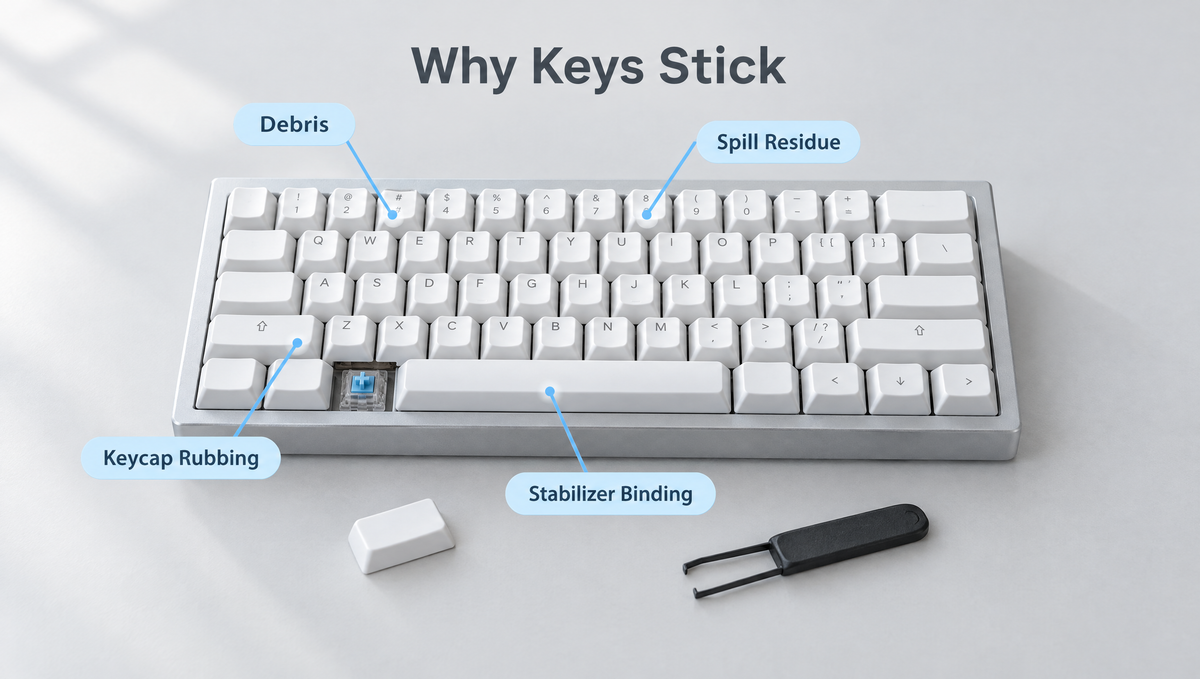
The trick is figuring out why the key is sticking. Debris, a spilled drink, a rubbing keycap, a binding stabilizer, and a worn or dry switch all feel similar at first, but each one has a different fix. This guide walks through how to diagnose a sticky key, how to fix sticking keys step by step, and how to stop it from coming back.
First, Rule Out the Windows "Sticky Keys" Feature
Many people searching for how to fix sticky keys are actually dealing with a software setting, not a physical problem. Windows and macOS both have an accessibility feature called Sticky Keys that lets modifier keys like Shift, Ctrl, and Alt stay active after you release them.
- On Windows, pressing Shift five times in a row can bring up the Sticky Keys prompt. You can turn it off, and turn off that shortcut, under the accessibility keyboard settings.
- On a Mac, Sticky Keys lives in the accessibility keyboard settings.
If your modifiers behave strangely but every key physically moves smoothly, check this setting first. If a key feels sticky under your finger, keep reading, because that is a mechanical problem.
How to Tell What Is Causing a Sticky Key
Before taking anything apart, spend a minute diagnosing the sticking key. Unplug the keyboard (or switch off a wireless one) and work through these checks:
- Press the key slowly, straight down. Then press it on each corner. If it only sticks when pressed off-center, the keycap may be rubbing or, on a long key, the stabilizer may be binding.
- Remove the keycap and press the bare switch. If the switch now feels smooth, the problem is the keycap. If it still sticks, the problem is the switch or something inside it.
- Look and listen. Visible crumbs, hair, or a tacky film point to debris or a spill. A scratchy, grinding feel suggests dirt in the switch. A key that sticks only on the spacebar, Shift, Enter, or Backspace usually points to the stabilizer.
- Compare with a neighboring key. If you have a hot-swappable board, swapping the suspect switch with a working one quickly shows whether the fault moves with the switch or stays with that position.
Cause 1: Dust, Crumbs, and Debris Under the Keycap
The most common reason for mechanical keyboard keys sticking is simply debris. Crumbs, dust, and hair collect under keycaps over time and can get into the gap around the switch stem.
How to fix it:
- Unplug the keyboard and pull the keycap straight up with a keycap puller, such as the Glacier Keycap/Switch Puller Tool.
- Turn the board upside down and give it a gentle shake.
- Use short bursts of compressed air around the switch, holding the can upright so no liquid propellant sprays out.
- Wipe the top of the switch housing and the plate around it with a dry cotton swab or a soft brush.
- Press the switch 20 to 30 times to work any loose debris free, then refit the keycap and test.
For a full deep clean of the whole board, follow our step-by-step mechanical keyboard cleaning guide.
Cause 2: A Spilled Drink Left Sticky Residue
If the key started sticking after a spill, the culprit is usually sugary or sticky residue from soda, coffee with sugar, juice, or an energy drink. Water usually dries without leaving much behind, but sugary drinks leave a tacky film on the stem and inside the housing that makes keys stick or feel slow to return.
How to fix sticky keys after a spill:
- Disconnect power immediately and turn the keyboard upside down so liquid drains away from the PCB.
- Remove the keycaps from the affected area and clean them separately in warm soapy water, then let them dry completely.
- Clean around the switches with a cotton swab lightly dampened with high-concentration isopropyl alcohol (90% or higher), which evaporates quickly.
- Let the board dry fully, ideally for a day or more, before plugging it back in.
Be aware that alcohol can thin or wash away the factory lubricant inside a switch, which may change how it feels. If a switch is still sticky after cleaning, the most reliable fix is to open the switch and clean it properly, or simply replace it. For what to do in the first few minutes after any spill, see our guide on saving a mechanical keyboard after a spill.
Cause 3: The Keycap Is Rubbing or Fitting Badly
If the bare switch feels smooth but the key sticks with the keycap on, the keycap is the problem. Common causes include:
- Keycap rubbing on its neighbor or the case. This happens with keycaps that are slightly too wide, slightly warped, or not fully seated, and with some artisan or 3D printed caps.
- A keycap that is not pushed all the way down or is sitting at a slight angle on the stem.
- A very tight keycap stem. In some cases an extremely tight keycap can squeeze the switch stem enough to add friction.
How to fix it: reseat the keycap firmly and straight, try a different keycap of the same size on that switch, and check that the gaps around the key are even. If you are unsure whether a keycap set matches your board, our keycap compatibility guide covers sizes, profiles, and stems.
Cause 4: Stabilizer Binding on the Spacebar, Shift, or Enter
When a spacebar sticks, or Shift, Enter, or Backspace feels sticky, the stabilizer is the usual suspect. Stabilizers keep long keys level, and when they bind the key can feel mushy, hang on the way back up, or stick when pressed on one end.
Typical causes of stabilizer binding include:
- A stabilizer wire that is not fully clipped into both stem housings
- Too much thick lubricant on the stabilizer stems, which can make the key slow to return
- A stabilizer housing that is not seated properly on the PCB or plate
- A bent wire, often after a keycap was pulled off at an angle
How to fix it: remove the keycap carefully, pulling straight up on both ends. Check that the wire is clipped into both stems and that both stabilizer stems move freely. If there is excess lubricant, clean it off and apply a thin layer. Our stabilizer tuning guide walks through removing, cleaning, and lubing stabilizers properly.
Cause 5: A Dry, Dirty, or Worn Switch
If the bare switch itself sticks, scratches, or returns slowly, the problem is inside the switch. Dirt may have worked into the housing, the stem may be binding against the housing walls, or the switch may simply be worn or defective.
How to fix a sticky switch:
- On a hot-swappable keyboard: pull the switch with a switch puller, gripping the top and bottom clips and lifting straight up (see our guide on using a switch puller without damage), then either clean the switch or replace it with a spare.
- Clean and re-lube it. Opening the switch lets you clean the stem and housing and apply a thin coat of switch lubricant. See our switch lubing guide for the full process.
- On a soldered keyboard: replacing the switch means desoldering it. If you are not comfortable with that, contact the manufacturer or a repair service.
When you replace a switch, use the same switch type or one with a similar feel so the key matches the rest of the board. When you refit a switch, line the pins up with the socket and press straight down. Bent pins cause a different problem (a key that does not register at all), which our hot-swap troubleshooting guide covers.
Cause 6: A Switch That Is Not Seated in the Plate
On hot-swappable boards, a switch that is not fully clipped into the plate can sit at a slight tilt. That tilt can make the stem rub inside the housing or make the keycap touch its neighbors, which feels like a sticking key.
How to fix it: with the keycap off, press down firmly on the switch housing (not the stem) until it sits flush with the plate. If it will not sit flat, pull it, check the pins and the plate cutout, and reinsert it straight.
Sticky or Stuck Keys on a Magnetic Hall Effect Keyboard
Magnetic switches can still bind physically from debris, spills, or keycap rubbing, so all the fixes above apply. However, on a Hall effect keyboard a key that seems to "stay pressed" or repeat after you let go is not always a physical problem. Very sensitive actuation or Rapid Trigger settings, or a key that needs recalibrating, can make a key register when you do not expect it to.
If the key moves smoothly but keeps registering, try recalibrating the board in its software and using slightly less aggressive actuation settings. Our magnetic keyboard calibration guide explains how. You can browse our magnetic keyboards to see which boards offer adjustable actuation.
How to Prevent Sticky Keys in the Future
- Keep drinks away from the keyboard, or use a spill-resistant cup at your desk.
- Avoid eating over the keyboard, since crumbs are one of the most common causes of sticking keys.
- Clean regularly. A quick shake and a pass with compressed air or a soft brush every few weeks stops debris building up.
- Pull keycaps and switches straight up with the right tool so you do not bend stabilizer wires or switch pins.
- Keep a few spare switches if your board is hot-swappable, so a bad switch is a two-minute fix.
A dedicated tool makes this maintenance easier. Our keyboard tools collection includes keycap and switch pullers such as the Glacier Keycap/Key Switch Tool, and you can find replacement switches in our key switches collection.
Sticky Mechanical Keyboard Keys: FAQ
Why are my mechanical keyboard keys sticking?
The most common causes are debris under the keycap, residue from a spilled drink, a keycap rubbing on its neighbor or the case, a binding stabilizer on longer keys, and a dirty or worn switch. Removing the keycap and pressing the bare switch is the fastest way to narrow it down.
Can I fix sticky keys without taking the keyboard apart?
Often, yes. For debris, pulling the keycap and using compressed air or a soft brush is usually enough. For keycap rubbing, reseating or swapping the keycap fixes it. You only need to remove or open a switch if the bare switch itself still sticks.
How do I fix a sticky spacebar on a mechanical keyboard?
A sticky spacebar is usually a stabilizer issue. Remove the spacebar carefully, check that the stabilizer wire is clipped into both stems, clean off any excess or gummy lubricant, and make sure both stabilizer stems move freely before refitting the keycap.
Is it safe to use isopropyl alcohol on a mechanical keyboard?
High-concentration isopropyl alcohol is commonly used to clean around switches because it evaporates quickly. Only use it on an unplugged keyboard, apply it with a swab rather than pouring it, and let everything dry fully. Keep in mind it can remove factory lubricant from inside switches.
Should I replace a sticky switch or clean it?
On a hot-swappable keyboard, replacing the switch is the quickest and most reliable fix, and you can clean the old one later. On a soldered keyboard, try cleaning first, since replacing a switch requires desoldering.
Fix the Cause, Not Just the Symptom
Sticky keys on a mechanical keyboard almost always come down to debris, spill residue, keycap fit, stabilizers, or the switch itself. Diagnose which one you have, apply the matching fix, and your keyboard should feel smooth again.


