

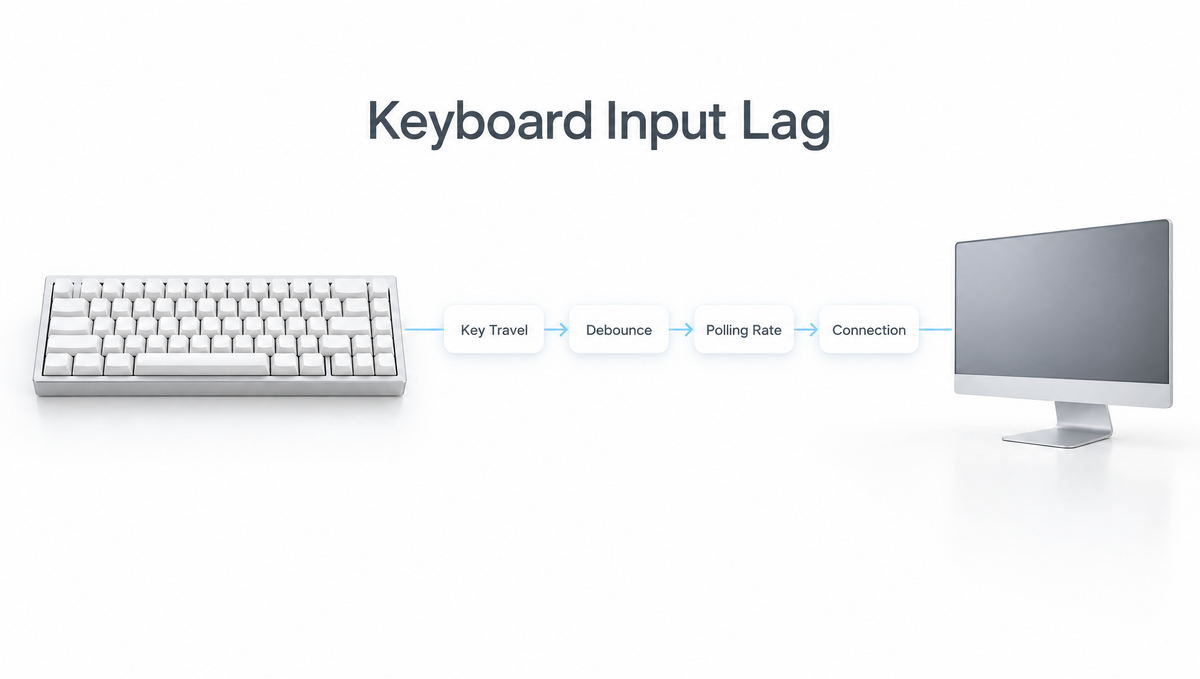
Keyboard Input Lag Explained: Where Does the Delay Come From?
Keyboard input lag is the time between your finger pressing a key and your computer actually receiving that keypress. Gamers chase it, reviewers measure it, and spec sheets advertise it with numbers like 8000Hz and 0.125ms. But keyboard latency is not one number. It is a chain of small delays, and the biggest link in that chain is often not the one on the box.
This guide breaks down what causes keyboard input lag, how debounce, polling rate, scan rate, actuation point, and wireless connections each add delay, which of those actually matter, and practical ways to reduce keyboard latency for gaming.
The Keyboard Latency Chain, Step by Step
Every keypress travels through several stages before it reaches your game. Each one adds a little time:
- Key travel. The key has to move far enough to reach its actuation point before anything happens at all.
- Sensing. The switch closes a metal contact (mechanical) or changes the magnetic field reading (Hall effect).
- Matrix scanning. The keyboard's microcontroller checks the keys over and over to find which ones changed.
- Debounce. On mechanical switches, firmware filters out the electrical noise of the contacts settling.
- Polling and transmission. The keyboard waits for its next report slot to send the press over USB or wireless.
- Computer and game. The operating system, game engine, frame rate, and monitor all add their own delay after the keyboard has done its job.
The keyboard only controls the first five stages. That is worth remembering, because a few milliseconds saved inside the keyboard can be dwarfed by a low frame rate or a slow display.
What Is Debounce and Does It Cause Input Lag?
When the metal contacts inside a mechanical switch close, they do not meet cleanly. They bounce for a very short moment, flickering open and closed before settling. If the keyboard reported every flicker, one press could type a letter twice. That fault is called key chatter.
Debounce is the firmware filter that prevents it. QMK, the most widely used open-source keyboard firmware, uses a default debounce time of 5 milliseconds, and the value can be changed. How much lag debounce adds depends on the type of algorithm:
- Defer debounce waits until the signal has been stable for the full debounce time before reporting the press. It is very resistant to noise, but every press is delayed by that window. QMK's default algorithm works this way.
- Eager debounce reports the press immediately, then ignores further changes for the debounce window. The press itself is not delayed, but this approach is less resistant to electrical noise.
So debounce can add several milliseconds of keyboard input lag, or close to none, depending on how the firmware is written. Setting debounce too low on worn switches is a common cause of double typing, so lowering it is not a free win.
Hall Effect Keyboards and Debounce
A Hall effect magnetic switch has no metal contacts. A magnet in the stem moves toward a sensor on the PCB, and the keyboard reads the strength of the magnetic field to work out how far the key has travelled. With no contacts, there is no contact bounce to filter, so magnetic keyboards do not need the traditional contact debounce delay that mechanical boards rely on. Firmware still processes the sensor readings, but the classic debounce window is removed from the chain.
The same is true of optical switches, which we cover in optical vs mechanical switches.
Keyboard Polling Rate: 1000Hz vs 8000Hz
Polling rate is how often the keyboard reports to the computer. The interval between reports is simple maths:
- 125Hz reports every 8 ms
- 1000Hz reports every 1 ms
- 8000Hz reports every 0.125 ms
A keypress has to wait for the next available report slot, so on average it waits about half the interval. Moving from 1000Hz to 8000Hz therefore saves, on average, a little under half a millisecond. That is real but small. A 125Hz keyboard, on the other hand, can add several milliseconds, which is why most gaming keyboards now run at 1000Hz or higher.
Some things to know about 8000Hz keyboards:
- 8000Hz polling generally needs a USB connection that supports high-speed USB reporting; a standard 1000Hz USB keyboard is limited to one report per millisecond.
- Higher polling rates can increase CPU load on some systems. If you see stutter after enabling 8000Hz, try 4000Hz or 1000Hz.
- A high polling rate does not fix a slow scan rate or a long debounce window. It only speeds up the final hand-off to the PC.
The same principles apply to mice, which we explain in our guide to mouse polling rate.
Scan Rate and Firmware: The Hidden Part of Keyboard Latency
Before a keypress can be polled, the keyboard has to notice it. The microcontroller checks every key repeatedly; this is the scan rate. If the scan is slow, a press can sit undetected for a moment even on a board with a high polling rate.
Scan rate is rarely listed on spec sheets, which is why two keyboards with the same advertised polling rate can measure differently in independent latency tests. Firmware quality and the microcontroller matter as much as the headline number. A well-optimized 1000Hz keyboard can respond faster than a poorly implemented 8000Hz one.
Actuation Point: The Biggest Lever Most People Ignore
Electronic delays are measured in fractions of a millisecond. Physical key travel is often a bigger factor. A typical mechanical switch actuates at around 2 mm of travel, and your finger has to cover that distance every time.
Magnetic keyboards let you change that. With adjustable actuation, you can set a key to register much earlier in its travel. Two features do most of the work for gaming:
- Shallow actuation means the key triggers sooner on the way down.
- Rapid Trigger resets the key as soon as it starts moving back up, instead of waiting for a fixed reset point. That makes repeated taps, counter-strafing, and quick releases faster.
These do not show up as a lower "latency" number in a lab test that presses the key the same way every time, but they change when your input happens in real play. Our guides on how Rapid Trigger works and the best Rapid Trigger settings for CS2 and Valorant go deeper.
A word of caution: very shallow actuation also registers accidental touches. If you rest your fingers heavily on the keys, start a little deeper and work upward.
Wireless Keyboard Latency: 2.4GHz vs Bluetooth vs Wired
Connection type adds its own delay:
- Wired USB is the most consistent and is the only way many boards reach their highest polling rate.
- 2.4GHz wireless with a dedicated receiver is designed for gaming and can be close to wired performance on a well-designed keyboard.
- Bluetooth is built for compatibility and battery life rather than speed. Its connection timing typically adds noticeably more delay than 2.4GHz, so it is better suited to typing and work than competitive games.
For 2.4GHz, keep the receiver close to the keyboard and clear of metal cases and other wireless devices. A USB extension that brings the receiver onto your desk often helps both latency consistency and signal stability.
How to Reduce Keyboard Input Lag: A Practical Checklist
- Play wired for competitive games, or use 2.4GHz rather than Bluetooth.
- Set the polling rate to 1000Hz or higher in your keyboard software, and confirm the setting actually saved.
- Plug directly into the PC rather than a monitor or unpowered hub, so other devices are not sharing the connection.
- On a magnetic keyboard, use a shallower actuation point and Rapid Trigger on your movement keys.
- Keep firmware updated using the manufacturer's official tool, since updates can change scanning and processing.
- Do not drop debounce to zero on a mechanical board. If you start getting double letters, raise it again.
- Look beyond the keyboard. Higher frame rates, a high refresh rate monitor, and in-game low-latency options often save more time than any keyboard setting.
How Is Keyboard Latency Tested?
True end-to-end keyboard latency testing needs specialized hardware: review labs use rigs that press keys mechanically and time when the computer receives the input. That is why independent review measurements are more reliable than manufacturer claims.
At home you cannot measure absolute latency accurately with a website, but you can check for problems. Online key testers will show chatter (one press registering twice) and missed presses, and your keyboard software will confirm the polling rate and actuation settings in use. If the board feels inconsistent, a magnetic keyboard calibration often solves it.
Choosing a Low Latency Keyboard
If input speed is your priority, look for a magnetic Hall effect keyboard with high polling, adjustable actuation, and Rapid Trigger. In our range, the Skyloong HE75 Magnetic Keyboard and the 67-key aluminum Skyloong GK68HE Magnetic Keyboard both offer an 8000Hz polling rate, adjustable actuation from 0.1 mm to 4.0 mm, and 0.01 mm Rapid Trigger. If you want magnetic switches for gaming keys and traditional switches elsewhere, the tri-mode Skyloong GK68HEAT Mix Keyboard supports both at once with an 8000Hz polling rate.
You can browse the full range of magnetic keyboards and magnetic switches, or our wider keyboard collection if typing feel matters more than milliseconds.
Keyboard Input Lag FAQ
Is 8000Hz polling rate worth it on a keyboard?
It helps a little. Compared with 1000Hz, 8000Hz cuts the average wait for the next USB report by just under half a millisecond. It is most worthwhile on a magnetic keyboard that is already fast elsewhere. If it causes stutter or high CPU usage, 1000Hz is still a solid gaming setting.
Do Hall effect keyboards have less input lag?
They remove one source of delay: because magnetic switches have no metal contacts, they do not need traditional contact debounce. Their bigger advantage is adjustable actuation and Rapid Trigger, which let keys register earlier and reset sooner during real gameplay.
What debounce time should I use?
Stick with the manufacturer's default unless you have a reason to change it. QMK's default is 5 ms. Lowering debounce can reduce delay with some algorithms, but going too low can cause chatter and double typing, especially on older switches.
Is Bluetooth too laggy for gaming?
For casual play it is usable, but Bluetooth typically adds more delay than a 2.4GHz receiver or a cable. For competitive games, switch your keyboard to 2.4GHz or wired mode.
Why does my keyboard feel delayed even at 1000Hz?
Polling rate is only one link in the chain. Slow scanning, long debounce, a deep actuation point, wireless interference, a USB hub, low frame rates, or a slow monitor can all add delay. Work through the checklist above, starting with a direct wired connection.


