

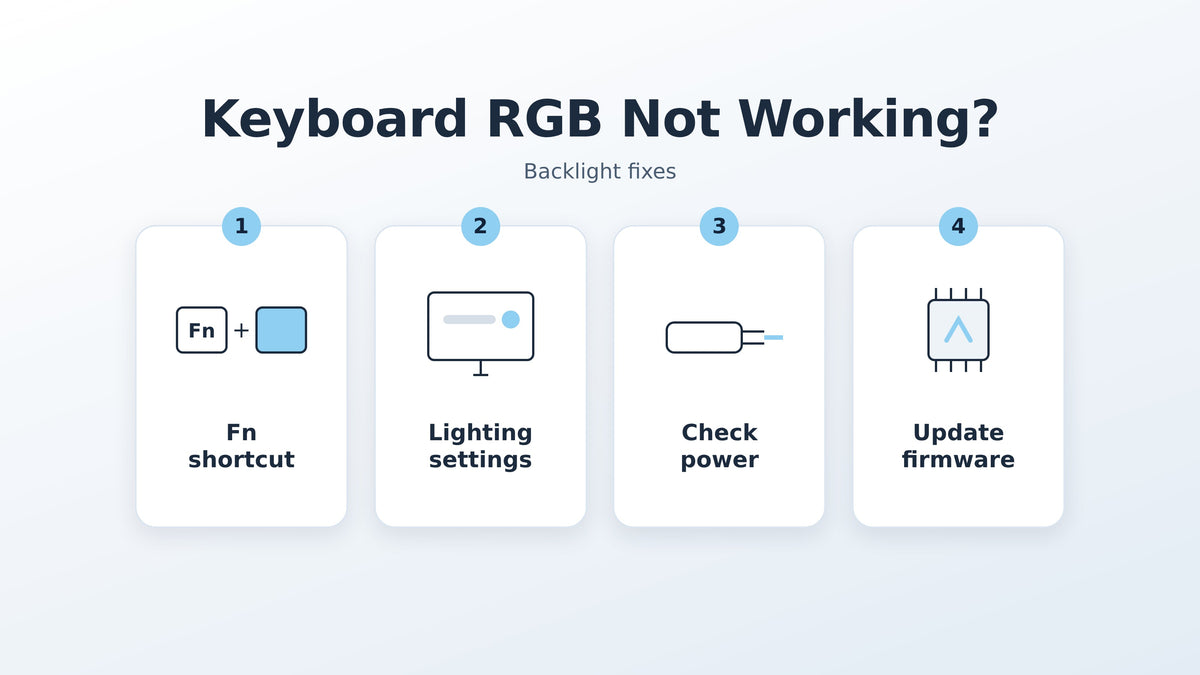
Keyboard RGB Not Working? Start Here
Few things are more frustrating than plugging in your mechanical keyboard and finding the lights dark, stuck on one color, or flickering. If your keyboard RGB is not working, the good news is that most backlight problems are not hardware failures. In the majority of cases the lighting has simply been switched off, dimmed to zero, taken over by another app, or starved of power.
This guide walks through every common cause of a keyboard backlight not working, from simple shortcut mistakes to Windows settings, wireless power saving, firmware, and the dreaded single key LED not working after a switch swap. Work through the fixes in order, from quickest to most involved, and you will usually find the culprit within a few minutes.
Quick Checklist: Why Is My Keyboard RGB Not Turning On?
Before you open any software or take anything apart, run through these quick checks:
- Brightness is at zero. Many keyboards let you lower brightness until the LEDs are completely off, which looks exactly like a fault.
- Lighting is toggled off. A single Fn shortcut can turn the backlight off entirely.
- An "off" or reactive effect is selected. Some effect cycles include an off state, and reactive lighting modes only light keys when you press them.
- The keyboard is in wireless mode. Many wireless keyboards dim or switch off lighting to save battery.
- The USB port or cable is not supplying enough power. RGB draws far more power than the keyboard itself.
- Another program is controlling the lights. Windows or a second RGB app may be overriding your settings.
Fix 1: Check Your Keyboard's RGB Shortcut Keys
Most mechanical keyboards control lighting directly from the board using Fn key combinations. Typical shortcuts cycle lighting effects, raise or lower brightness, change speed, and toggle the backlight on or off.
The exact combinations vary from model to model, so check your keyboard's manual or product page for the lighting shortcuts, then:
- Press the brightness up shortcut several times, since the board may simply be at its lowest level.
- Cycle through every lighting effect. One of them may be an off state, and some effects only light the key you just pressed.
- Try the backlight toggle shortcut once, then wait a second to see if the LEDs return.
If your keyboard supports custom layers, remember that lighting controls usually live on the Fn layer. Our guide to keyboard layers and Fn keys explains how those layers work if a remap has moved or removed a lighting control.
Fix 2: Wireless Mode, Low Battery and Sleep Settings
If your RGB works when wired but not wireless, power saving is the most likely reason. Lighting is one of the biggest drains on a wireless keyboard battery, so many boards reduce brightness, limit effects, or turn the backlight off completely when running on battery, and some turn it off when the battery gets low.
Things to check on a wireless mechanical keyboard:
- Battery level. Charge the keyboard fully and see if the lighting returns.
- Sleep or idle timeout. Many keyboards turn off lighting after a period of inactivity and wake it with the next keypress.
- Per-mode lighting settings. Some boards store separate lighting settings for wired, 2.4GHz, and Bluetooth modes.
Dimming the backlight is also one of the most effective ways to extend runtime, which we cover in our guide to wireless keyboard battery life.
Fix 3: Windows Dynamic Lighting and RGB Software Conflicts
If your keyboard RGB is stuck on one color, ignores your settings, or changes back after you set it, another program is probably controlling the lights.
Windows 11 Dynamic Lighting
Windows 11 includes a built-in feature called Dynamic Lighting, added in a late 2023 update, which can control the lighting of compatible devices that support the open HID LampArray standard. You will find it under Settings > Personalization > Dynamic Lighting. Compatible devices appear as cards along the top of that page.
If your keyboard appears there, try the following:
- Turn Use Dynamic Lighting on my devices off. Microsoft notes that devices then return to their default, non-Dynamic Lighting behavior, which lets your keyboard's own controls and software take over again.
- Review Compatible apps in the foreground always control lighting. When this is on, an active game or app can take over your keyboard lighting.
- Expand Background light control and drag the app you want in charge to the top of the list, since a higher-priority app will override the others.
If your keyboard does not appear in Dynamic Lighting at all, Windows is not controlling it, and you can move on to the next fix.
Multiple RGB Apps Fighting Each Other
Running more than one lighting program at once, such as your keyboard's own software plus a third-party RGB sync tool, can cause flickering, lighting that resets, or colors that refuse to change. Close every lighting app except the one you want, check the system tray for background utilities, and unplug the keyboard for a few seconds.
Fix 4: Power, USB Ports and Cables
RGB lighting draws much more power than the rest of the keyboard. When the supply is weak, you may see RGB that will not turn on, lighting that flickers at high brightness, or a keyboard that disconnects as soon as lighting is enabled.
- Plug directly into the computer. Unpowered USB hubs, monitor ports, and some front-panel ports may not deliver enough current for full-brightness RGB.
- Swap the cable. A damaged or low-quality cable can carry enough power for typing but not for lighting. Test with a known-good cable and see if the backlight returns.
If you use a custom coiled cable, test with a simple straight cable to rule it out. When it is time for a replacement, a well-built cable such as the Glacier Braided Premium Cable, a braided USB-C to USB-A coiled cable with a detachable metal aviator connector, is worth having on hand. You can see more options in our keyboard cables collection.
Fix 5: Reset Lighting Settings and Check Firmware
Saved settings and firmware can also cause backlight problems. A lighting profile might have brightness set to zero, a remap may have removed the lighting keys, or an incorrect firmware flash may have changed how lighting behaves.
- Factory reset the keyboard. A reset restores default lighting, brightness, and key mappings. Follow our step-by-step guide on how to factory reset a mechanical keyboard.
- Check VIA or your configuration software. If your keyboard uses VIA, lighting controls are usually found in the lighting section of the configurator. If VIA cannot see the board, our guide to fixing VIA connection problems can help.
- Use the correct firmware. Only flash firmware provided for your exact keyboard model and PCB version. Firmware for a similar model can leave lighting, or the whole keyboard, behaving incorrectly.
Single Key LED Not Working After Swapping Switches
One of the most common questions on hot-swap keyboards is why a single key LED is not working or looks dim after changing switches. On most modern hot-swap boards, each LED is a small surface-mounted component soldered to the PCB, and the switch does not power it. That narrows down the cause:
- Different switch housing. Switches with milky, tinted, or opaque top housings pass far less light than clear-top switches, so one key can look much darker than its neighbors.
- A switch is blocking the LED. A switch that is not fully seated can sit at an angle and partly block the light from the LED.
- Physical damage. A switch puller or tweezers that slips can knock or crack the tiny LED on the PCB. Look closely at the LED under the affected key.
- Through-hole LEDs. Some boards use LEDs that sit up inside the switch housing. If yours does, the LED has to pass through the switch's LED slot when you install a new switch.
If the key also stops typing, the problem is usually a bent switch pin or a loose hot-swap socket rather than the LED itself. Our guide to bent pins and hot-swap socket fixes covers that in detail, and our article on using a keycap puller and switch puller without damage explains how to avoid hitting the PCB in the first place. A dedicated tool like the Glacier Keycap/Switch Puller Tool grips the switch housing for removal on MX-style hot-swap keyboards.
Several LEDs Out in a Row
On some keyboards, especially underglow LEDs and LED strips, the lights are wired in series. A single failed LED can stop every LED after it in the chain from lighting. If a whole row or section goes dark at once, suspect one faulty LED at the start of that run, which usually needs warranty service or a soldering repair.
RGB Looks Dim or Uneven? Check Your Keycaps
Sometimes the lighting is working perfectly, but your keycaps are hiding it. Opaque dye-sublimated keycaps do not let legends glow, so you only see light around the base of each key. Top-printed shine-through legends can also look dim on keyboards with south-facing LEDs, because the light sits toward the front of the switch.
If you want brighter, more even RGB, translucent keycaps make the most of the light your LEDs produce. The Glacier Crystal Jelly Keycaps Set is a 136-key translucent PBT set in OEM profile designed to let RGB shine through. Our guide to shine-through vs pudding vs translucent keycaps and our article on north vs south-facing PCBs explain how to match keycaps to your LEDs, and you can browse more styles in our keycaps collection.
When Keyboard RGB Problems Mean a Hardware Fault
If you have tried every fix above and the backlight is still not working, a hardware fault becomes more likely. Signs include:
- One color channel is missing, such as an LED that can show blue and green but never red.
- LEDs flicker or stay dark on every computer, port, and cable you try.
- Lighting failed suddenly after a spill or a drop.
At that point, contact the manufacturer or retailer about warranty support before attempting any soldering, since opening the case or reworking the PCB may affect your coverage. If you are shopping for a replacement, our keyboards collection includes both mechanical and magnetic keyboards.
Frequently Asked Questions About Keyboard RGB Not Working
Why did my keyboard RGB suddenly stop working?
The most common causes are an accidental Fn shortcut that turned the lighting off or set brightness to zero, a sleep or power-saving setting, or another app taking control of the lights. Check your lighting shortcuts first, then Windows Dynamic Lighting and any RGB software running in the background.
Why does my keyboard RGB work wired but not wireless?
Many wireless keyboards dim or disable lighting on battery power to extend runtime, and some turn it off when the battery is low. Charge the keyboard, check its sleep settings, and see whether it stores separate lighting settings for each connection mode.
How do I stop Windows from controlling my keyboard lighting?
In Windows 11, open Settings > Personalization > Dynamic Lighting and turn off "Use Dynamic Lighting on my devices." Your keyboard will return to its default lighting behavior and respond to its own shortcuts and software again.
Why is one key not lighting up on my keyboard?
On hot-swap keyboards, a single dark key is usually caused by a switch with an opaque or tinted housing, a switch that is not seated correctly, or an LED damaged during switch removal. If the key also stops typing, check for bent switch pins or a loose hot-swap socket.
Get Your Keyboard Backlight Working Again
When your mechanical keyboard RGB is not working, start with the simple fixes: brightness, Fn shortcuts, lighting effects, and battery. Then check Windows Dynamic Lighting and competing RGB apps, test another port and cable, and reset the keyboard before suspecting a failed LED. Most keyboard backlight problems are fixed in minutes, without opening the case.


