

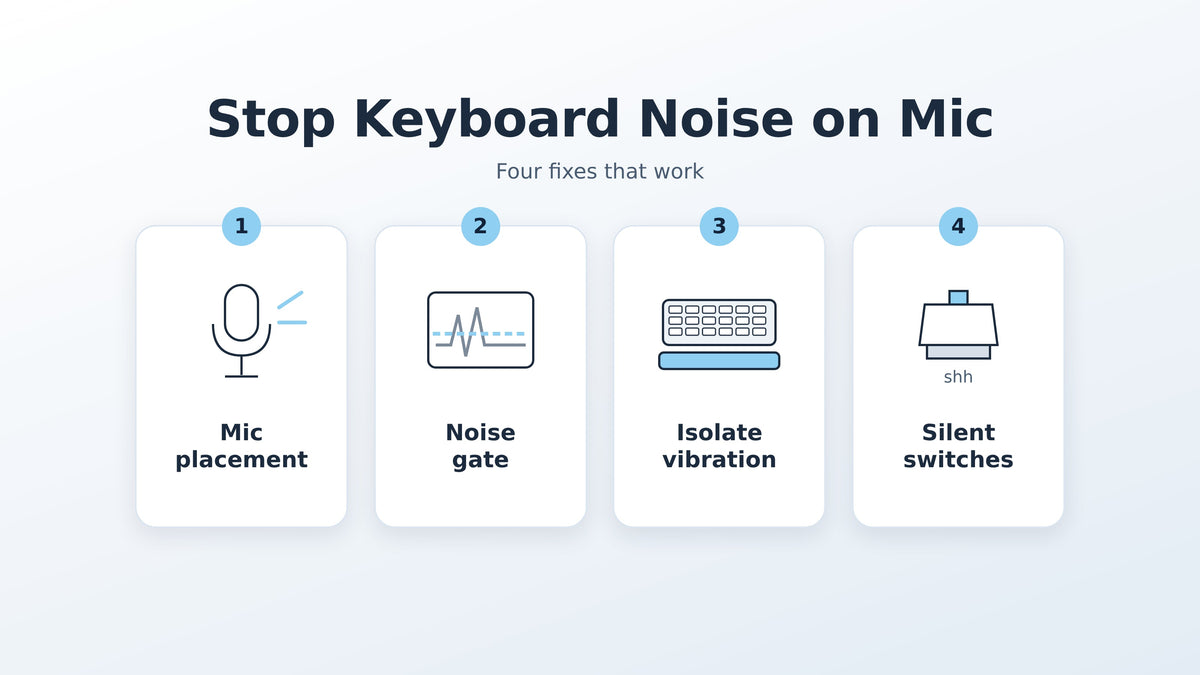
Why Your Mic Picks Up Keyboard Noise (and How to Stop It)
If your friends keep saying they can hear every keystroke, you are not alone. Keyboard noise on mic is one of the most common complaints from gamers, streamers, and anyone on voice chat with a mechanical keyboard. The clack that sounds great at your desk can come through a microphone as a sharp, distracting rattle that drowns out what you are saying.
The good news is that you rarely need to give up your mechanical keyboard. How to stop your mic picking up keyboard sounds comes down to three layers: where the microphone is, how your voice software is set up, and how loud the keyboard actually is. Fix the first two and most of the problem disappears; fix the third and it usually goes away entirely.
Why Microphones Pick Up Mechanical Keyboard Typing So Easily
Keyboard sound is hard for a microphone to ignore for a few reasons:
- It is sharp and percussive. Each keystroke is a short, loud transient — a quick spike of sound — which stands out clearly against your voice.
- It is close to the mic. On most desks the keyboard sits only a short distance from the microphone, often closer than the gap between the mic and your mouth.
- It travels through the desk. Bottoming out sends vibration into the desk surface. A mic on a desk stand picks that vibration up directly, not just through the air.
- Sensitive mics hear everything. Many popular desktop USB microphones are sensitive condenser designs that capture the whole room, keyboard included.
Understanding which of these is causing your problem tells you which fix to reach for first.
Fix 1: Move the Microphone Closer to Your Mouth
This is the single most effective change, and it costs nothing. Sound level drops quickly with distance. As a rule of thumb, for a small sound source, halving the distance raises the level by roughly 6 dB. Moving the mic closer to your mouth makes your voice much louder relative to the keyboard, so you can turn the gain down and the typing falls into the background.
- Position the mic a short distance from your mouth rather than at the back of the desk
- Lower the input gain after moving it closer, so you are not still capturing the whole room
- If you use a headset, set the boom mic near the corner of your mouth rather than pushed away
A mic that sits close to you and runs at lower gain is the foundation of every other fix on this list.
Fix 2: Use the Mic's Pickup Pattern to Reject the Keyboard
Most voice and streaming microphones use a cardioid pickup pattern. A cardioid mic is most sensitive to sound directly in front of it and least sensitive to sound directly behind it. That gives you a simple placement trick: point the front of the mic at your mouth and arrange things so the keyboard sits towards the back or side of the mic, where it is least sensitive.
- Check whether your mic is side-address or end-address. Many desktop USB mics are spoken into from the side, not the top, and aiming the wrong part at your mouth is a very common mistake.
- Use the cardioid setting. If your mic offers several patterns, omnidirectional and figure-8 modes pick up far more of the room. Cardioid is the right choice for voice chat.
- Angle the mic down toward your mouth from above, so the keyboard falls outside the front of the pattern.
Dynamic microphones are often recommended for noisy setups because they are typically less sensitive than condenser mics and pick up less distant sound when you speak close to them. If you are shopping for a new mic specifically to reduce keyboard noise, that is worth considering, but placement matters more than mic type.
Fix 3: Isolate the Mic From Desk Vibration
If the mic sits on a stand on the same desk as your keyboard, a lot of the noise is not airborne at all — it is vibration travelling through the desk into the stand. Signs of this include a low thump on every keystroke and extra noise when you rest your hands or bump the desk.
- Use a boom arm clamped to the desk edge, which keeps the mic off the desk surface and closer to your mouth at the same time
- Add a shock mount to decouple the mic from the arm or stand
- Put a soft surface under the keyboard. A large cloth desk mat absorbs some of the impact before it reaches the desk. See the mousepads collection and our mousepad and desk mat size guide for sizing a mat that fits under both keyboard and mouse.
Fix 4: Set Up a Noise Gate and Noise Suppression
Software is the fastest way to cut keyboard noise on voice chat and streams. Most voice chat apps and streaming tools include two kinds of filter:
- Noise gate. A gate keeps the mic muted until the input goes above a threshold you set. Typing while you are silent stays below the threshold and is cut out. The limitation: when you are talking, the gate is open and keystrokes come through with your voice.
- Noise suppression. Modern suppression filters try to separate voice from background sound in real time and can remove much of the keyboard noise even while you speak. Stronger settings can make your voice sound slightly processed, so test before going live.
To set a noise gate properly, watch your input meter while you type without speaking. Set the threshold just above the level the keyboard reaches, then check that your quietest normal speech still opens the gate. If you use both a gate and noise suppression, enable one at a time first so you can hear what each is doing.
For competitive voice chat, push-to-talk is the bluntest fix of all: the mic is only live while you hold a key, so typing between callouts never reaches your team.
Fix 5: Make the Keyboard Itself Quieter
If you have done everything above and the clack still cuts through, it is time to deal with the source. A quieter keyboard means less noise for the mic to reject in the first place. The biggest wins, roughly in order:
- Switch to silent switches. Silent switches use built-in dampening to soften both the bottom-out and the return of the stem, which removes much of the sharp impact sound microphones pick up. On a hot-swap board this is a straightforward swap — the Glacier Skyloong Silent Switches are a 5-pin option, and the full range is in the silent switches collection. Our guide to how silent switches work explains the dampening in detail, and the switch compatibility guide covers checking fit before you buy.
- Avoid clicky switches for voice chat. Clicky switches are designed to make an audible click on every press, which is exactly what you do not want near a mic. Linear and silent switches are the quieter choices; see clicky vs silent switches for gaming.
- Stop bottoming out so hard. Much of the noise comes from the key slamming into the bottom of its travel. A lighter touch helps, and our article on bottoming out covers how to type more softly.
- Tune rattly stabilizers. The spacebar is often the loudest key on the board. Lubing and tuning stabilizers removes rattle that a mic picks up very clearly — see our stabilizer tuning guide.
- Add foam. Case and plate foam reduce hollowness and echo inside the keyboard. Our keyboard foam mods guide walks through the options.
For a broader list of acoustic fixes, see how to make a mechanical keyboard quieter.
Quick Checklist: Reduce Keyboard Noise on Your Mic
- Move the mic closer to your mouth and lower the gain
- Aim the front of a cardioid mic at your mouth, with the keyboard behind or to the side
- Get the mic off the desk with a boom arm or shock mount
- Put a desk mat under the keyboard
- Set a noise gate threshold just above your typing level, and test noise suppression
- Use push-to-talk if typing still leaks through
- Swap to silent or linear switches and tune your stabilizers
Work through these in order. The first four cost little or nothing, and many people find the problem solved before they reach the keyboard itself.
Frequently Asked Questions About Keyboard Noise on Mic
Why does my mic pick up my keyboard but not other background noise?
Keyboard noise is loud, sharp, and very close to the mic, and it can travel through the desk into a desk-mounted microphone. Steady background sounds like a fan are also easier for noise suppression to filter than sudden keystrokes.
Will a noise gate remove keyboard sounds while I am talking?
No. A noise gate only mutes the mic when the input falls below the threshold. While you speak, the gate is open and keystrokes pass through with your voice. Noise suppression and better mic placement handle keyboard noise during speech.
Are silent switches quiet enough for streaming?
Silent switches remove much of the sharp bottom-out and return sound, which is the part microphones pick up most. Combined with good mic placement and a noise gate, they make keyboard noise much less noticeable on stream. No mechanical keyboard is completely silent, so the mic setup still matters.
Is a dynamic mic better than a condenser for reducing keyboard noise?
Dynamic mics are often less sensitive and pick up less of the room when you speak close to them, which helps in noisy setups. A condenser mic can still work well if it is placed close to your mouth, set to a cardioid pattern, and run at lower gain.
Do I need a new keyboard to stop my mic picking up typing?
Usually not. Mic placement, gain, vibration isolation, and software filters solve most cases. If you still want a quieter board, a hot-swap keyboard lets you change to silent switches without buying a new keyboard.
Quiet Voice Chat Without Giving Up Your Mechanical Keyboard
Keyboard noise on mic is mostly a setup problem, not a keyboard problem. Get the microphone close to your mouth, use its pickup pattern, keep it away from desk vibration, and set up a noise gate or suppression. If you want to go further, quieter switches and a tuned keyboard deal with the noise at the source. You can browse linear switches, silent switches, and the full keyboard accessories range when you are ready to build a quieter setup.


